# How Songstead works
Songstead keeps your songs and set lists in one library that you can play from on a phone, a tablet or a computer. A change you make on one device shows up on the others on its own, so you never copy anything between them.
If you don't have an account yet, see [Create an account](https://songstead.com/docs/create-account.md). You can also try the demo first, with a sample band's songs already in it.
## Songs and charts
A **song** is one piece of music in your library. It has a title and the details you'd want while playing it: the artist, tempo, time signature, how long it lasts, and any notes. See [Songs](https://songstead.com/docs/songs.md).
Each song holds one or more **charts**. A chart is the thing you actually read from while you play. Most songs have one chart, but you can keep several on the same song, like a full chart and a lyrics-only sheet. See [Charts](https://songstead.com/docs/charts.md).
A chart is either text or a file:
- A **text chart** is chords and lyrics you typed or pasted in. Songstead understands it, so it can change the key, show the chords as Nashville numbers, make the text bigger, and reflow it to fit your screen. See [ChordPro and chords over lyrics](https://songstead.com/docs/chart-formats.md).
- A **file chart** is a PDF or a photo of a chart. Songstead shows it exactly as it is. See [Files and storage](https://songstead.com/docs/files.md).
## Sets
A **set** is a list of songs in order, for a gig, a church service, a rehearsal or a lesson. Each song in a set can be in its own key and use its own chart, without changing the song anywhere else. You can play a whole set from start to finish in [Live Mode](https://songstead.com/docs/live-mode.md). See [Sets](https://songstead.com/docs/sets.md).
## Groups
Every song and set belongs to exactly one **group**.
- Your **Personal** group is made for you when you sign up. Only you can see what's in it.
- A shared group is for a band, a worship team or a class. Everyone in it sees the same songs and sets, and a change one person makes shows up for everyone.
Even on a shared song, a few things stay yours alone: the key and capo you play it with, your personal tags, and your personal annotations. See [Groups and roles](https://songstead.com/docs/groups.md).
## Finding your way around
The menu down the left side of the screen takes you to each part of Songstead. On a phone, select the menu button in the top-left corner to open it.
Songstead opens on **Home**: your next set with a countdown and the sets after it, the songs you added most recently, what has changed lately in your groups, your achievements, and any group invites waiting for you. Until you add your first song, Home welcomes you with two ways to get going: **Load sample songs and sets** puts three short songs and two sets into your Personal group to look at and play with, and **See achievements** opens the list of things to try. The samples carry a Demo tag, so they are easy to find and delete later, and they do not count toward any achievement.


| Section | What's there |
| -------------- | --------------------------------------------------------------------------- |
| **Home** | Your next set, the newest songs, recent activity, achievements and invites. |
| **Songs** | Every song you can see, with search, filters and sorting. |
| **Sets** | Your sets, split into upcoming, past and undated. |
| **Groups** | The groups you belong to, and any invites waiting for you. |
| **Account** | Your name, password and connected apps. |
| **Library** | Importing, exporting, tags and how much storage you've used. |
| **Appearance** | The theme, how chords are written, and how charts and PDFs look. |
| **Settings** | Transpose mode, keeping the screen awake, and how Live Mode scrolls. |
Your plan is listed at the bottom of the menu. See [Plans and limits](https://songstead.com/docs/plans.md).
## Devices
Songstead runs in a web browser at [app.songstead.com](https://app.songstead.com), and as an app for iPhone, iPad and Android. You sign in with the same email address everywhere and see the same library. See [iPhone, iPad and Android](https://songstead.com/docs/apps.md).
> [!NOTE]
> Songstead works without an internet connection once it has opened online on that device. See [Offline access](https://songstead.com/docs/offline.md).
---
# Tutorials
Each tutorial takes one task from start to finish, with a short video and a screenshot of each step. To read about everything a feature can do, see the rest of the docs.
## Songs
- **[Create a song](https://songstead.com/docs/tutorial/create-song).** Name a song, paste or type in its chart, and save it.
- **[Import your library](https://songstead.com/docs/tutorial/import-library).** Bring your songs and sets across from OnSong or SongbookPro in one file.
- **[Import from Ultimate Guitar](https://songstead.com/docs/tutorial/import-ultimate-guitar).** Copy a chart from Ultimate Guitar and paste it into a new song.
- **[Annotate a chart](https://songstead.com/docs/tutorial/annotations).** Draw, highlight, and add arrows, notes, stamps and recordings to a chart.
## Performing
- **[Use autoscroll](https://songstead.com/docs/tutorial/autoscroll).** Have the chart scroll by itself, at a speed you pick or in time with the song.
---
# Create an account and sign in
You can start using Songstead in a couple of minutes. All you need is an email address, and the free Jam plan has no limit on songs or sets.
## Try it first
If you'd like to look around before signing up, open [demo.songstead.app](https://demo.songstead.app). It's the real app, filled with a sample band's songs and sets. Nothing you do there is saved, and refreshing the page starts it over.
## Create your account
1. Go to [app.songstead.com](https://app.songstead.com) and select **Sign up**. In the iPhone, iPad or Android app, the sign-in screen has the same link.
2. Type your email address and select **Send verification code**.
3. Check your email for a message with a 6-digit code. Type the code into the six boxes and select **Continue**. If it doesn't arrive in a minute or two, check your spam folder, or select **Send a new code**.
4. Type your name in **What should we call you?** and choose a password, then select **Get started**.
The code only works in the same browser or app where you asked for it, so finish signing up on the same device.
If you were sent an invite to join someone's group, sign up with the email address the invite went to. See [Groups and roles](https://songstead.com/docs/groups.md).
## The welcome screen
The first time you sign in, Songstead says hello and shows two ways to reach us: the **Facebook Group** and **Email Support**. You can also choose whether to get the occasional email about what's new. Select **Let's make some music** to start.
Behind it is **Home**. Until you add your first song, it welcomes you with two ways to get going:
- **Load sample songs and sets** puts three short songs and two sets into your Personal group to look at and play with. They carry a Demo tag, so they are easy to find and delete later, and they do not count toward any [achievement](https://songstead.com/docs/achievements.md).
- **See achievements** opens the list of things to try in Songstead, each with a short clip of how to do it.
The quickest ways to fill your library with your own songs are:
- [Import](https://songstead.com/docs/import.md) the songs and sets you already have in another app, like OnSong or SongbookPro.
- [Create a song](https://songstead.com/docs/songs.md) by pasting a chart in, from Ultimate Guitar or anywhere else.
## Sign in
Go to [app.songstead.com](https://app.songstead.com), or open the app, and type your email address and password. Select **Sign in**.
## Forgot your password
1. On the sign-in screen, select **Forgot password?**.
2. Type your email address and select **Send reset code**.
3. Type the 6-digit code from the email, then choose a new password and select **Set password**.
As with signing up, the code only works on the device where you asked for it.
## Log out
Select the circle with your picture or initial at the top right of the app, and choose **Log out**.
---
# iPhone, iPad and Android apps
Songstead has free apps for iPhone, iPad and Android. They're the same Songstead you use in a web browser, with the same account, songs, sets and settings, so you can switch between your phone, your tablet and your computer whenever you like.
## Get the app
- **iPhone and iPad:** [Songstead on the App Store](https://apps.apple.com/us/app/songstead/id6803043304)
- **Android phones and tablets:** [Songstead on Google Play](https://play.google.com/store/apps/details?id=app.songstead)
Open the app and sign in with the same email address and password you use on the web. If you don't have an account yet, you can make one from the app. See [Create an account](https://songstead.com/docs/create-account.md).
On a computer, use Songstead in any up-to-date web browser at [app.songstead.com](https://app.songstead.com).
## Everything stays in sync
A song you add on your computer is on your tablet the next time you open it, and a key you change on your phone is changed everywhere. There's nothing to copy or back up between devices.
Your display settings, like text size, chord names and theme, follow you too. That's handy when you set things up once on a big screen.
## Always up to date
The apps load Songstead from the internet, so they're always on the newest version. There are no updates to wait for, and every new feature arrives in the apps the moment it arrives on the web.
Songstead opens without a connection once you've used it online. Your songs and sets are there, changes you make are saved on the device, and everything syncs as soon as you're back online. See [Offline access](https://songstead.com/docs/offline.md).
## Downloads and recordings
- **Downloading a PDF or chart** saves it to your Downloads folder on Android. On iPhone and iPad, it opens the share sheet, so you can save it to Files, print it, or send it on. See [Exporting and printing](https://songstead.com/docs/export.md).
- **Recording an audio note** on a chart asks for permission to use the microphone the first time. See [Annotations](https://songstead.com/docs/annotations.md).
## Plans in the apps
The apps show your plan, but you can't buy or change a plan inside them. Plans are bought on the web at [app.songstead.com](https://app.songstead.com), and a plan you buy there works in the apps straight away.
When you select something in the app that needs a paid plan, Songstead explains what the plan includes and how to get it on the web. See [Plans and limits](https://songstead.com/docs/plans.md) and [Billing and payments](https://songstead.com/docs/billing.md).
## Foot pedals on a tablet
Bluetooth page-turner pedals work with the apps the same way they work in a browser. Pair the pedal in your device's Bluetooth settings, then open [Live Mode](https://songstead.com/docs/live-mode.md). See [Foot pedals and shortcuts](https://songstead.com/docs/foot-pedals.md).
---
# Offline access
Songstead works without an internet connection once it has opened online on a device. You can open and edit your songs, sets, and charts offline, and your changes sync once you're back online. It's included on every plan.
## Before you go offline
While you're online, Songstead saves your library and every file in it to each device you use. Before a gig, open Songstead online on the device you'll play from and check that the sync indicator shows a cloud with a check mark.
## What doesn't work offline
You can do everything else offline. These need a connection:
- Joining a group, or creating, leaving, or deleting one, and managing its members and invites
- Changing your password, plan, or payment details, and viewing invoices
- Setting up or changing calendar feeds, and disconnecting an AI agent
- Deleting your account
- Logging out
If you select one of these while you're offline, Songstead tells you it needs a connection.
## Changes you make offline
Songstead keeps what you change offline on this device, even if you close the app. Once you're back online, Songstead syncs those changes.
If someone else changed or deleted the same thing while you were offline, their change stands. Yours is dropped, and Songstead doesn't show a message about it.
## The sync indicator
The sync indicator sits at the top of the screen, next to the account button. You can select it to open **Library** → **Storage**.
| Icon | What it means |
| ---------------------------- | -------------------------------------------------------------------------------------------- |
| Cloud with a check mark | This device has your whole library and every file in it, and has sent every change you made. |
| Turning arrows | Songstead is sending your changes or saving files to this device. |
| Cloud with a line through it | You're offline. Your changes wait on this device until you're back online. |
The number on the indicator is how many changes are waiting to sync.

## Check what's synced
The **Offline Access** card in **Library** → **Storage** shows whether this device is up to date: whether you're connected, when it last synced, how many changes are waiting to be sent, and how many files it still has to save. When every count on it has a check mark, this device has everything it needs for a gig with no signal. If the device runs out of room, the card says so, and the files that didn't fit open only online.

---
# Plans and limits
Songstead has three plans. **Jam** is free, with no limit on how many songs or sets you keep. **Backstage** adds what you need to perform and to work with files. **Harmony** is for sharing songs and sets with a band, a worship team or students.
| | Jam | Backstage | Harmony |
| -------------------------------------- | --------- | ---------- | --------------------------------------- |
| Price | Free | $2 a month | $2 a month, plus $1 or less per person |
| Songs and sets | Unlimited | Unlimited | Unlimited |
| Join other people's groups | Yes | Yes | Yes |
| Use Songstead offline | Yes | Yes | Yes |
| Transpose, metronome, autoscroll | Yes | Yes | Yes |
| Draw and write on charts | Yes | Yes | Yes |
| Live Mode and foot pedals | | Yes | Yes |
| MIDI | | Yes | Yes |
| Audio notes on charts | | Yes | Yes |
| Attach files, play from a PDF or photo | | Yes | Yes |
| File storage | | 5GB | 5GB |
| Choose chart colors and spacing | | Yes | Yes |
| PDFs without the Songstead footer | | Yes | Yes |
| Sets in your calendar app | | Yes | Yes |
| Connect an AI assistant | | Yes | Yes |
| Create groups and share songs and sets | | | Yes |
The [pricing page](https://songstead.com/pricing) lists every feature, row by row.
## Jam
Jam is free for as long as you use it. You get unlimited songs and sets, sync between all your devices, [offline access](https://songstead.com/docs/offline.md), tags, search, importing, exporting, transposing, the metronome, autoscroll, and annotations. You can also join any group you're invited to.
## Backstage
Backstage is a plan for one person. On top of everything in Jam, it adds:
- [Live Mode](https://songstead.com/docs/live-mode.md), the full-screen view for performing, with [foot pedal](https://songstead.com/docs/foot-pedals.md) support.
- [MIDI](https://songstead.com/docs/midi.md): footswitches and other devices controlling Songstead, patch changes sent as each song starts, MIDI clock, and remotes of your own buttons and faders.
- [Files](https://songstead.com/docs/files.md): attaching PDFs, photos, Word documents and recordings to songs, and playing from a PDF or photo. Backstage includes 5GB of storage.
- Audio notes recorded onto a chart. See [Annotations](https://songstead.com/docs/annotations.md).
- Your own chart colors and spacing in [Appearance](https://songstead.com/docs/appearance.md).
- PDFs without the small Songstead footer. See [Exporting and printing](https://songstead.com/docs/export.md).
- [Calendar feeds](https://songstead.com/docs/calendar-feeds.md) of your sets.
- [Connecting an AI assistant](https://songstead.com/docs/ai-agents.md) like Claude or ChatGPT.
## Harmony
Harmony is the plan for creating [groups](https://songstead.com/docs/groups.md) and sharing with them. The person who pays for Harmony gets everything in Backstage, and can create groups, invite people, and share songs, sets, tags and annotations with them.
### Seats
Harmony is paid per person, and each person is a seat. You need at least two seats: one for you and one for someone else.
- Everyone in your groups uses a seat, including you.
- Someone who's in two of your groups still uses one seat.
- You can't send new invites once every seat is used.
Your own seat costs the same as Backstage. Each seat after it costs less the more people you add:
| Seats | Monthly | Yearly |
| ---------- | ---------- | --------- |
| Yours | $3 | $24 |
| 2 to 5 | $1.50 each | $12 each |
| 6 to 10 | $1.25 each | $10 each |
| 11 to 25 | $1 each | $8 each |
| 26 to 99 | $0.75 each | $6 each |
| 100 and up | $0.50 each | $4 each |
A band of five on yearly billing pays $72 a year: $24 for you and $12 for each of the other four.
### What your members get
People in your groups get the Jam features from your plan. If you add the Backstage option to your Harmony plan, everyone in your groups gets Backstage features too, such as Live Mode, without paying for a plan of their own. The Backstage option raises the price of every seat after yours, and the Plan page shows the total before you confirm.
> [!NOTE]
> Joining a group never costs anything. A member only needs their own paid plan for features the group's plan doesn't give them.
## Paying for a plan
You can pay monthly or yearly, and yearly costs less. A year costs the same as eight months.
Your first paid plan starts with a free 14-day trial. Each account gets one trial, and you'll need to add a card to start it.
To change or cancel your plan, select **Plan** at the bottom of the menu. See [Billing and payments](https://songstead.com/docs/billing.md) for how changes, cancelling and payment methods work.
Plans are bought on the web at [app.songstead.com](https://app.songstead.com), not in the iPhone, iPad or Android app. A plan you buy on the web works in the apps too.
## When a paid plan ends
Your songs, sets and charts stay in your library when you go back to Jam. Features that need a paid plan stop working until you subscribe again.
If your Harmony plan ends, your groups are switched off. Members can't see the groups' songs and sets until Harmony is back. The same happens if your groups have more people than your plan has seats, until you add seats or remove someone.
---
# Songs
A song is one piece of music in your library: its title, artist and other details, and the [charts](https://songstead.com/docs/charts.md) you play it from. Every song you can see is listed under **Songs** in the menu.
## Create a song
Select **New Song** at the top of the **Songs** page. Creating a song takes two steps.
First, give the song a title. You can also add the artist, and Songstead suggests artists already in your library as you type. **Group** decides who can see the song: **Personal** keeps it to yourself, and choosing a shared group puts it in front of everyone in that group. Then select **Next**.
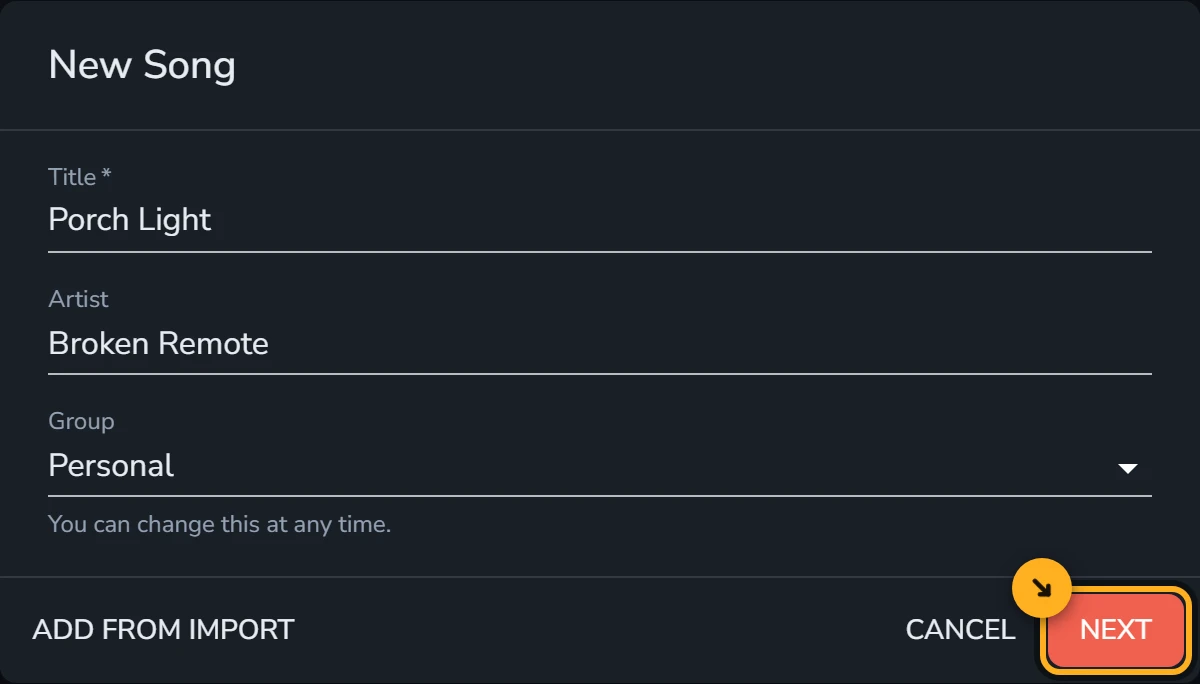
Second, add the chart. You can paste or type the chords and lyrics into the box, or select a PDF or a photo of a chart to play from. When you paste a chart, Songstead reads the chords and fills in the **Written Key** for you. Select **Create** to save the song and open it.
[Create a song](https://songstead.com/docs/tutorial/create-song) in the tutorials walks through the same steps with a video.
> [!NOTE]
> To bring in a lot of songs at once, see [Importing](https://songstead.com/docs/import.md). **Add From Import** in the New Song dialog takes you there.
## The song page
Selecting a song opens its page, with the chart filling most of the screen.

The three buttons at the top right of the page are:
| Button | What it does |
| ------------------------- | ------------------------------------------------------------------------- |
| Live Mode (the spotlight) | Opens the song full screen for performing. See [Live Mode](https://songstead.com/docs/live-mode.md). |
| Edit (the pencil) | Opens the song's details, charts, tags and files for editing. |
| Menu (the three dots) | **Download**, **Duplicate** and **Delete**. |
The toolbar at the bottom of the chart keeps the controls you reach for while playing close at hand:
| Button | What it does |
| --------------------------------------- | ----------------------------------------------------------------------------------------------------------------------- |
| Annotations (the squiggle) | Opens the drawing and note tools. See [Annotations](https://songstead.com/docs/annotations.md). |
| Larger and smaller text (A with arrows) | Makes the chart's text bigger or smaller. |
| Autoscroll (the double arrow) | Starts and stops [autoscroll](https://songstead.com/docs/autoscroll.md). |
| Metronome | Starts and stops the [metronome](https://songstead.com/docs/metronome.md). |
| Settings & Tools (the panel) | Opens the song's cards. On a computer screen the cards are always showing beside the chart, so this button isn't there. |
### The cards
The cards hold the rest of the song's controls:
| Card | What it does |
| ----------- | -------------------------------------------------------------------------------------------------------------------------------------------------- |
| Details | Shows the tempo, time signature and length. |
| Metronome | Plays a click at the song's tempo. See [Metronome](https://songstead.com/docs/metronome.md). |
| Performance | Sets the key you play in, and the capo or transpose. See [Keys, capo and transposing](https://songstead.com/docs/keys-and-transposing.md). |
| Display | Chooses which parts of the chart are shown, chord names, simplified chords, text size and autoscroll speed. See [Chord display](https://songstead.com/docs/chord-display.md). |
| Files | Lists files attached to the song. See [Files and storage](https://songstead.com/docs/files.md). |
## Song details
Select the pencil on the song page to edit a song. On a tablet or phone the details are in the panel that opens from the button at the bottom right of the editor; on a computer they're beside the chart. These are the details a song can hold:
| Detail | What Songstead does with it |
| -------------- | ---------------------------------------------------------------------------------------------------------------------------------------------------------------- |
| Title | Shown everywhere the song is listed, and searched. |
| Artist | Shown under the title, searched, and used when you sort by artist. |
| Time Signature | Shown on the song page and in Live Mode, and used by the metronome. |
| Tempo | Beats per minute. Used by the metronome and the tempo filter on **Songs**. |
| Duration | How long the song lasts. [Autoscroll](https://songstead.com/docs/autoscroll.md) uses it to finish the chart when the song ends, and a [set](https://songstead.com/docs/sets.md) adds durations up into a total length. |
| Group | Who can see the song. See [Groups and roles](https://songstead.com/docs/groups.md). |
| Note | Anything you want to remember, like who sings it or how it starts. You see it when you edit the song. |
| Tags | Labels for finding the song again. See [Tags](https://songstead.com/docs/tags.md). |
The written key belongs to each chart rather than to the song, because two charts of the same song can be in different keys. See [Keys, capo and transposing](https://songstead.com/docs/keys-and-transposing.md).
Select the save button, the disk at the top right, when you're done. Nothing you change while editing is kept until you save.
## Duplicate a song
**Duplicate** in the song's menu makes a copy with the same details and charts, so you can change the copy without touching the original. If you only want a different arrangement of the same song, [a second chart](https://songstead.com/docs/charts.md) on the original usually works better, because it keeps everything under one title.
## Move a song to another group
You can move a song by changing its **Group** while editing it. Only the person who created the song can move it, and only between groups where they're an owner or editor. Group tags move with the song. See [Groups and roles](https://songstead.com/docs/groups.md).
## Delete a song
**Delete** in the song's menu removes the song once you confirm. If the song is in any sets, Songstead tells you how many, and deleting the song takes it out of them too. A deleted song can't be brought back.
---
# Charts
A chart is what you read from while you play. A song can hold as many charts as you like, so a full chart, a lyrics-only sheet and a short version can all live under one title instead of being three separate songs.
## Text charts and file charts
There are two kinds of chart.
| Kind | What it is | What Songstead can do with it |
| ---- | ------------------------------------------------------------------------------------------------ | ----------------------------------------------------------------------------------------------------------------------------------------------- |
| Text | Chords and lyrics you typed or pasted in, as [ChordPro or chords over lyrics](https://songstead.com/docs/chart-formats.md). | Change the key, show Nashville numbers or simpler chords, make the text bigger, fit it to your screen, change its colors, and search its words. |
| File | A PDF, a photo or a Word document you uploaded. | Show its pages exactly as they are, recolor them to suit a dark screen, and search the words in a PDF or Word document. |
Each chart has its own **Written Key**, the key its chords are written in. For a text chart, Songstead works this out from the chords. See [Keys, capo and transposing](https://songstead.com/docs/keys-and-transposing.md).
> [!PLAN] Backstage
> A file chart is an uploaded file, so it needs a plan that includes file storage.
## The chart editor
Select the pencil on a song's page to edit it. The song's charts are tabs across the top of the editor, and the chart you're looking at is the one you're editing. Select a tab to switch charts.

A text chart is a plain text box. Songstead keeps exactly what you type, and does all the transposing and formatting when it shows the chart. Changing the key or the display settings never changes the text you saved.
Select the save button, the disk at the top right, when you're done. Nothing you change while editing is kept until you save.
On a tablet or phone, the song's details, group, note and tags are in the panel that opens from the button at the bottom right of the editor. On a computer they're beside the chart.
## Add a chart
Select the **+** to the right of the chart tabs. Choose **Text** to type or paste a chart, or **File** to upload one, then give it a name and select **Create**.
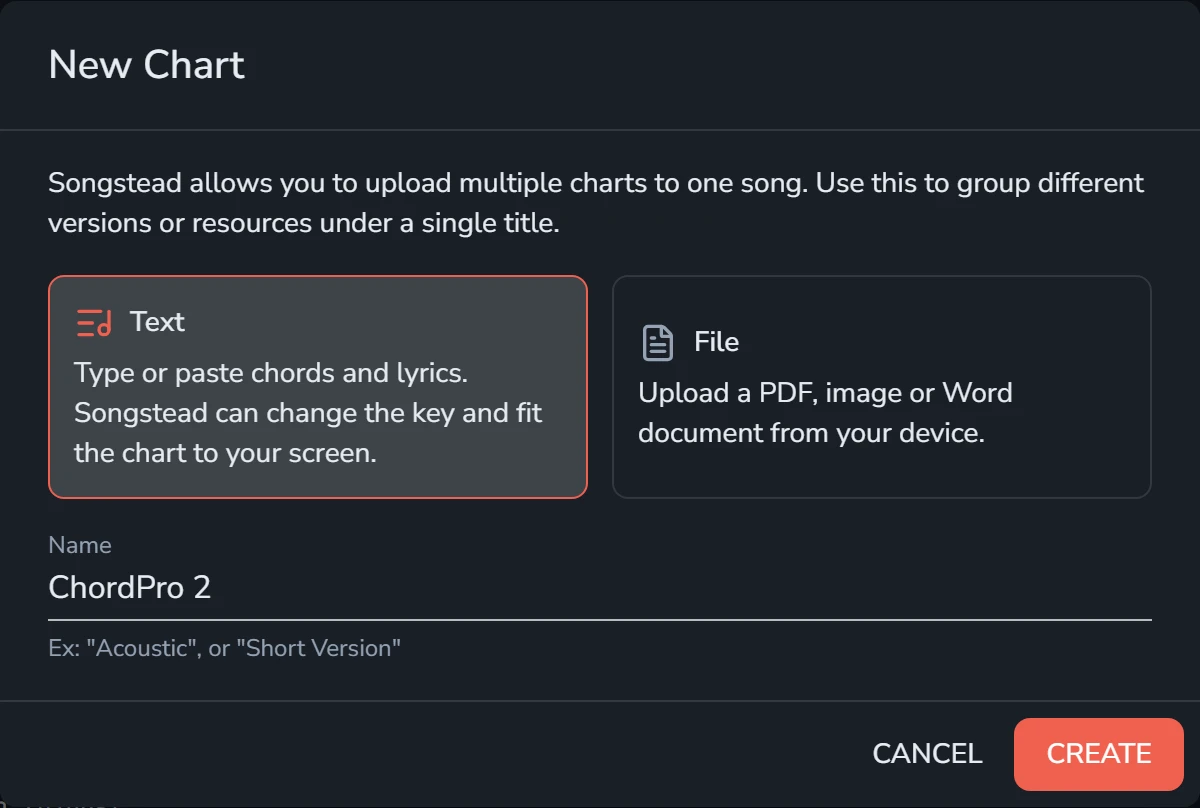
Pick a name that says how this chart is different, like "Acoustic" or "Short Version". For a file chart, Songstead uses the file's name to start with.
An audio recording can't be a chart. Recordings go in the song's **Files** card instead. See [Files and storage](https://songstead.com/docs/files.md).
## The default chart
The default chart is the one a song opens on. You can choose it in two places:
- On the song page, open the chart you want and select **Set as Default Chart** in the **Display** card.
- In the editor, select the gear on the chart's tab and choose **Set as Default**.
A [set](https://songstead.com/docs/sets.md) can open a song on a different chart from its default. When you open a song, Songstead shows:
1. The chart chosen for that song in the set, if you opened it from a set.
2. Otherwise, the song's default chart.
3. If there isn't one, the song's first chart.
## Rename, duplicate or delete a chart
Each chart's tab in the editor has a small gear. Select it for **Rename**, **Duplicate**, **Set as Default** and **Delete**.
A duplicate is a good starting point for a second arrangement of the same chart. A deleted chart is removed when you save the song, so you can still change your mind by leaving without saving.
## Download a chart
You can download any chart as ChordPro, as chords over lyrics, or as a PDF. See [Exporting and printing](https://songstead.com/docs/export.md).
---
# ChordPro and chords over lyrics
Songstead reads text charts in two formats, and you can mix them in the same chart. Either way, Songstead stores the chart exactly as you wrote it and works out the chords each time it shows it.
## Chords over lyrics
Chords over lyrics is the format most websites use, including Ultimate Guitar. Each line of chords sits above the line of lyrics it goes with, and each chord is lined up over the syllable where it changes.
```
[Verse 1]
G C G
Amazing grace, how sweet the sound
D
That saved a wretch like me
```
Spacing matters in this format, because the column a chord sits in is where it falls in the lyric. A line of chords with no lyrics under it, like an intro, is kept as a line of chords.
## ChordPro
ChordPro puts each chord in square brackets inside the lyric, just before the syllable it falls on.
```
{start_of_verse: Verse 1}
[G]Amazing grace, how [C]sweet the [G]sound
That saved a wretch like [D]me
{end_of_verse}
```
ChordPro doesn't depend on spacing, so a chart stays correct in any font and at any width.
You can switch how either format is shown with **Chord Position** in [Appearance](https://songstead.com/docs/appearance.md): above the lyrics or inline with them.
## Section headers
A label in square brackets on a line of its own starts a section. Songstead shows it as a header and uses it to find its place in [Live Mode](https://songstead.com/docs/live-mode.md) and [autoscroll](https://songstead.com/docs/autoscroll.md).
```
[Intro]
[Verse 1]
[Chorus]
[Bridge]
```
Any label works, as long as it's the only thing in brackets on the line and isn't a chord name. A section called `[A]` would be read as an A chord, so call it `[Part A]` instead.
ChordPro's section directives work too: `{start_of_verse}`, `{start_of_chorus}`, `{start_of_bridge}`, `{start_of_tab}` and `{start_of_grid}`, each closed by its `end_of_` partner. A label after the colon, as in `{start_of_verse: Verse 2}`, becomes the header. Without one, the header is Verse, Chorus, Bridge, Tab or Grid.
## Directives
A directive is a ChordPro instruction in curly braces on its own line. These are the ones Songstead acts on:
| Directive | What it does |
| -------------------------------------- | ----------------------------------------------------------------------------------------------------- |
| `{title: ...}`
`{t: ...}` | The song's title. Read into the song's details on import. |
| `{artist: ...}` | The artist. Read into the song's details on import. |
| `{tempo: ...}` | The tempo in beats per minute. Read into the song's details on import. |
| `{time: ...}` | The time signature, like `3/4`. Read into the song's details on import. |
| `{duration: ...}` | The song's length. Read into the song's details on import. |
| `{comment: ...}`
`{c: ...}` | A comment shown in the chart, like "Build" or "Drums only". |
| `{comment_italic: ...}`
`{ci: ...}` | A comment in italics. |
| `{comment_box: ...}`
`{cb: ...}` | A comment in a box. |
| `{key: ...}` | A key change partway through the song. Shown as a comment, and transposed with the rest of the chart. |
| `{copyright: ...}` | Shown at the bottom of the chart, such as a CCLI number. |
| `{start_of_chorus}`
`{soc}` | Starts a chorus. `{eoc}` ends it. |
| `{start_of_verse}`
`{sov}` | Starts a verse. `{eov}` ends it. |
| `{start_of_bridge}`
`{sob}` | Starts a bridge. `{eob}` ends it. |
| `{start_of_tab}`
`{sot}` | Starts a block of tab, kept exactly as written. `{eot}` ends it. |
| `{start_of_grid}`
`{sog}` | Starts a chord grid. `{eog}` ends it. |
Directives Songstead doesn't recognize are kept in the chart and not shown.
Comments can be hidden with **Display** in [Appearance](https://songstead.com/docs/appearance.md), which is useful when you want only chords and lyrics on screen.
[Annotations](https://songstead.com/docs/annotations.md) do a similar job without changing the chart. A comment is part of the chart's text, so everyone who opens the chart sees it. An annotation sits on top of the chart, on your personal layer or a group's layer. It works on PDF and image charts too, and it can be a drawing, a stamp or a recording as well as text.
## OnSong headers
A chart that starts with plain lines for the title and artist followed by lines like `Key: G` or `Tempo: 72`, the way OnSong writes them, is read as the same information as the matching directives.
## Chords Songstead understands
Songstead reads standard chord names, including sharps and flats, minor and major sevenths, suspended and added chords, extensions like 9, 11 and 13, altered chords, diminished and augmented chords, and slash chords like `G/B`. How they are drawn can be changed in [Chord display](https://songstead.com/docs/chord-display.md).
---
# Keys, capo and transposing
Songstead can play any text chart in any key. You never have to rewrite a chart to change its key: the chart stays the way you wrote it, and Songstead works out the new chords every time it shows it.
## Two keys: written and performed
Every chart has two keys, and it helps to keep them apart.
| Key | What it means | Where you set it |
| ------------- | ------------------------------------------ | ----------------------------------------------------------------------------------------------------- |
| Written Key | The key the chart's chords are written in. | While editing the song, with the chart. Songstead fills it in from the chords when you paste a chart. |
| Performed key | The key you actually play the song in. | **Key** in the song's **Performance** card. |
When the two are different, Songstead moves every chord from the written key to the performed key.
If a song has no written key, the **Performance** card says **Missing Written Key**, and the chart can't be transposed until you set one while editing the song.
## Change the key
The **Performance** card is beside the chart on a computer. On a tablet or phone, it's in the **Settings & Tools** panel, which opens from the button at the bottom right of the chart.
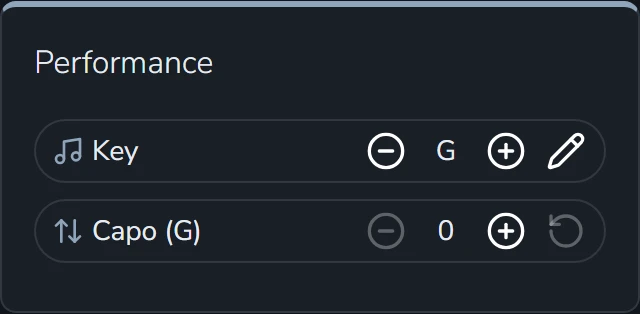
The **−** and **+** buttons beside **Key** move the key down or up a half step at a time, and the chart changes as you go.

The pencil opens a list of every key to choose from. The chart changes behind the list as you pick, so you can read the result before you select **Save**. **Cancel** puts it back the way it was.
Outside a set, the key you choose is yours alone. Other people in your [group](https://songstead.com/docs/groups.md) keep seeing the song in their own key.
## Capo and transpose
The second row of the **Performance** card is either **Capo** or **Transpose**, depending on **Transpose Mode** in [Settings](https://songstead.com/docs/settings.md).
| Transpose Mode | What the row does |
| -------------- | ------------------------------------------------------------------------------------------------------------------------------------------------------------------------------------------------------------------------------------- |
| Capo | Sets a capo fret, from 0 to 12. Songstead shows the chord shapes to play with the capo on, and the row shows which key those shapes are in, like **Capo (G)**. The song still sounds in the key you chose above. This is the default. |
| Unrestricted | Moves the whole chart up or down by up to 11 half steps, which suits keyboards and other instruments without a capo. |
The reset button at the end of the row puts it back to zero.
Your capo or transpose is always yours alone, inside a set and outside one.
### An example
Say a song is written in A, and you'd rather play G shapes with a capo. Leave the key on A and set the capo to 2. The row shows **Capo (G)**, and the chart shows G shapes. It still sounds in A, so the band doesn't have to change anything.
## Keys in a set
A song in a [set](https://songstead.com/docs/sets.md) has its own key for that set, and everyone who can see the set sees that key. Changing it only changes that set. The song itself, and every other set it's in, stay as they were.
When you add a song to a set, it starts in the key you play it in, or the chart's written key if you've never changed it.
## Key changes inside a song
A `{key: A}` line partway through a ChordPro chart marks a key change. Songstead shows it in the chart and moves it with everything else, so a song that goes up a step still goes up a step in any key. See [ChordPro and chords over lyrics](https://songstead.com/docs/chart-formats.md).
## PDF and image charts
A PDF or a photo of a chart is shown exactly as it was uploaded, so it can't be transposed. You can still set its written key, as a note of what key the file is in.
---
# Chord display
Songstead can show the same chart in different ways: with letter names or Nashville numbers, with full chords or simpler ones, bigger or smaller, and with only the parts you want to see. None of this changes the chart you saved, so you can switch back at any time.
## The Display card
The **Display** card on the song page holds the settings you're most likely to change while you play. It's beside the chart on a computer. On a tablet or phone, it's in the **Settings & Tools** panel, which opens from the button at the bottom right of the chart.
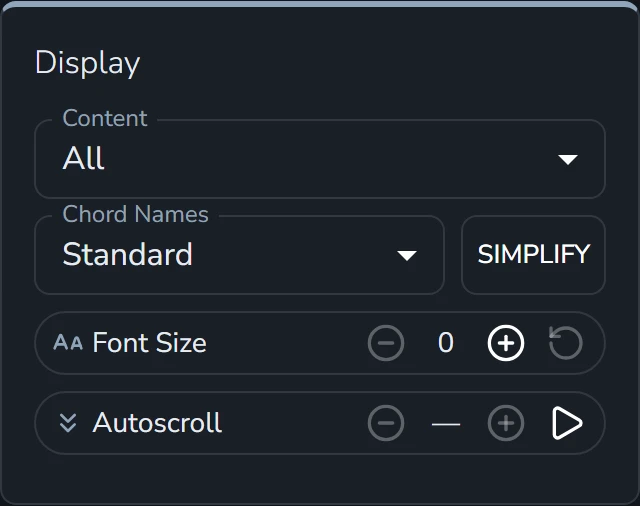
| Setting | What it does |
| ----------- | ----------------------------------------------------------------------------------------------------------------------------------------------------------------------------------------------------------------------------------------------------------------------- |
| Content | Chooses which parts of the chart are shown: **Chords**, **Lyrics** and, when the chart has any, **Comments**. A singer can turn chords off, and a player who knows the words can turn the lyrics off. **All** means everything is showing. |
| Chord Names | **Standard** shows letter names like G and Em. **Nashville** shows numbers that count from the key, like 1 and 6m, so they read the same in any key. |
| Simplify | Shows only the basic chord, leaving out sevenths and other added notes and the bass note after a slash. Gmaj7/B becomes G, and Am7 becomes Am. Major, minor, suspended and other chord types stay as they are, so Dsus4 is still Dsus4. Select it again to turn it off. |
| Font Size | Makes the chart's text bigger or smaller, in nine steps. The reset button puts it back. |
| Autoscroll | Moves the chart down the screen as you play. See [Autoscroll](https://songstead.com/docs/autoscroll.md). |
Changing **Chord Names** to **Nashville** changes every chord in the chart at once:

These settings apply to every song, not only the one you're looking at, and they follow you to your other devices. The larger and smaller text buttons in the toolbar at the bottom of the chart change the same **Font Size**.
## More settings in Appearance
[Appearance](https://songstead.com/docs/appearance.md) in the menu has the full set of chord settings under **Notation**:
| Setting | Choices | What it does |
| ----------- | ------------------- | --------------------------------------------------------------------------------- |
| Chord Names | Standard, Nashville | Letters or numbers, the same as in the Display card. |
| Quality | Letters, Symbols | Writes chord types as letters, like Cmaj7 and Cm, or as symbols, like CΔ7 and C−. |
| Superscript | On or off | Shows the extra parts of a chord, like the 7 in Am7, as smaller raised text. |
| Simplify | On or off | The same as **Simplify** in the Display card. |
Appearance also has settings for how the chart is laid out:
- **Chord Position** puts the chords above the lyrics or inline with them, whichever way the chart was written.
- **Wrap Chords** puts square brackets around each chord, which is easier to read when chords are inline.
- **Spacing** sets how far apart lines are: **Compact**, **Normal** or **Relaxed**.
- **Collapse Whitespace** turns several blank lines in a row into one.
The app and PDFs each have their own copy of these settings, so a chart can look one way on screen and another way on paper.
> [!PLAN] Backstage
> Choosing your own colors and spacing needs Backstage. Everything else on this page works on every plan.
## PDF and image charts
None of these settings apply to a PDF or a photo of a chart, which is always shown the way it was uploaded. The Display card's controls are turned off while one is showing, except autoscroll.
---
# Files and storage
You can attach files to a song: a PDF of a lead sheet, a photo of a handwritten chart, a Word document from your music director, or a practice recording. A PDF or a photo can also be the chart you play from.
> [!PLAN] Backstage
> Attaching files needs a plan that includes file storage. Backstage and Harmony each include 5GB.
## Attach a file
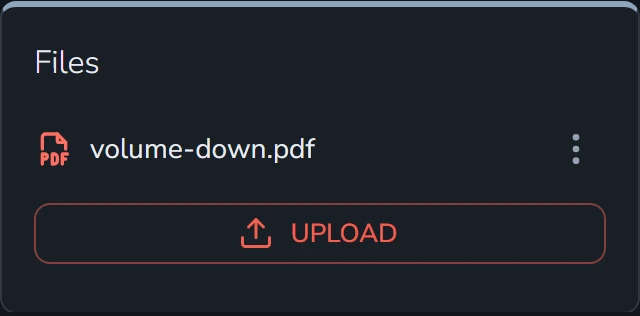
Every song page has a **Files** card. Select **Upload** and choose a file from your device. On a tablet or phone, the card is in the **Settings & Tools** panel, which opens from the button at the bottom right of the chart.
| Kind of file | What you can do with it |
| -------------- | ------------------------------------------------------------------------------------------------------------------------------------- |
| PDF | Play from it as a chart, search the words in it, and download it. |
| Photo or image | Play from it as a chart, and download it. |
| Word document | Play from it as a chart once Songstead has turned it into a PDF, search the words in it, and download either the original or the PDF. |
| Audio | Play it from the **Files** card, and download it. |
The menu beside a file has **Download**, **Rename** and **Delete**. A Word document's menu has **Download Original** and **Download PDF** instead of **Download**.
## Play from a PDF or photo
To play from a PDF or a photo, add it as a chart. Select the pencil on the song page, select the **+** beside the chart tabs, choose **File**, pick the file, and select **Create**. Then select the save button. See [Charts](https://songstead.com/docs/charts.md) for the details.
The file becomes a tab beside the song's other charts, and Songstead shows its pages as they are.

You can [annotate](https://songstead.com/docs/annotations.md) a PDF or photo chart the same way as a text chart, and play it in [Live Mode](https://songstead.com/docs/live-mode.md). Songstead can't transpose it or change its text, because it doesn't read the chords in a file.
### Colors for dark screens
A white page is glaring on a dark screen, so Songstead recolors file charts to match your theme. You can choose how under **Files** in [Appearance](https://songstead.com/docs/appearance.md):
| Style | What it does |
| ---------------- | --------------------------------------------------------------------------------------------------------- |
| Original | Shows the pages exactly as they are. |
| Match Theme | Recolors the pages to the theme's own colors. This is the default, and it's what the picture above shows. |
| Invert | Swaps light and dark, so white paper turns black. |
| Invert, Keep Hue | Swaps light and dark, but keeps colors the same, so red ink stays red. |
## Search inside files
Songstead reads the words in every PDF and Word document you attach, including scanned pages. To search them, turn on **Files** in the search options on **Songs**. See [Search, filter and sort](https://songstead.com/docs/search.md).
A Word document waiting to be turned into a PDF shows **Queued for Conversion** in the **Files** card. If it can't be converted, it shows **Couldn't Convert**.
## How much storage you've used
The **Quota** tab in **Library** shows how much of your storage you've used. These count against it:
- Files on songs in your **Personal** group.
- Files on songs in groups you own.
- Audio notes on your own annotations, and on the annotation layers of groups you own.
Files on songs in someone else's group count against that group owner's storage, not yours.
## Delete a file
**Delete** in a file's menu removes it from the song. A chart made from that file goes with it. It stops counting against your storage right away.
---
# Tags
Tags are labels you put on songs so you can find them again, like "acoustic", "Christmas", "opener" or "learning". A song can have as many tags as you like, and you can filter **Songs** to show only the songs with a tag.
## Add tags to a song
Select the pencil on the song page, then use the **Tags** card. On a tablet or phone, it's in the panel that opens from the button at the bottom right of the editor.
Start typing a tag's name and Songstead offers the tags you already have. If you type a name you haven't used before, it becomes a new tag when you save the song.
## Group tags and personal tags
A tag belongs to a group, the same way a song does.
| Kind | Who sees it | Which songs it can go on |
| ------------ | ---------------------- | --------------------------------------------------------------- |
| Group tag | Everyone in the group. | Songs in that group. |
| Personal tag | Only you. | Any song you can see, including songs in other people's groups. |
On a song in a shared group, the **Tags** card has two boxes: **Group Tags** and **Personal Tags**. On a song in your **Personal** group, every tag is personal, so there's only one box.
Personal tags are handy in a band's library. You can tag the songs you sing lead on, for example, without changing anything anyone else sees.
A viewer in a group can't change the group's tags, but can still add personal tags to the group's songs. See [Groups and roles](https://songstead.com/docs/groups.md).
When a song moves to another group, its group tags move with it. If the new group doesn't have a tag by that name yet, Songstead creates it.
## Manage your tags
Open **Library** from the menu, then the **Tags** tab. It lists every tag and how many songs have it. If you're in more than one group, choose which group's tags to see with **Group** at the top.

Each tag has three buttons:
| Button | What it does |
| --------- | --------------------------------------------------------------------- |
| Eye | Hides the tag, or shows it again. |
| Pencil | Opens **Edit Tag**, where you can rename the tag or change its color. |
| Trash can | Opens **Delete Tag**, which takes the tag off every song that has it. |
When you delete a tag, you can pick another tag to put on those songs instead. That's how you merge two tags into one, like "Xmas" into "Christmas".
**New Tag** at the top makes a tag before you've used it on any song.
Only a group's owners and editors can rename or delete its tags.
## Hide a tag
Hiding a tag stops it showing on your songs. The songs themselves still show. Only you are affected, so hiding a group tag doesn't change anything for anyone else.
This is useful in a large group where other people use tags you don't need, like another team's labels.
## Filter by tag
On **Songs**, the **Tags** filter shows only the songs with the tags you pick. See [Search, filter and sort](https://songstead.com/docs/search.md).
---
# Search, filter and sort
**Songs** lists every song you can see: the ones in your **Personal** group and the ones in every group you belong to. Search, filters and sorting help you find the one you want.
## Search
Type into the search box at the top of **Songs**, and the list narrows as you type. Search looks at more than titles. It finds a song from a line of its lyrics too:

When a song matched on something other than its title or artist, the match is shown under the song, with where it was found, like **Chart:** or **File:**.
### Choose where to search
The button with the sliders, at the right end of the search box, chooses where search looks. Everything is turned on to start with.

| Option | What it searches |
| ----------- | ----------------------------------------------------------------------------------- |
| Attributes | Titles and artists. |
| Chart | Everything in your text charts: lyrics, comments and ChordPro directives. |
| Files | The names of attached files, and the words inside attached PDFs and Word documents. |
| Annotations | The words in text notes you've written on charts. |
If you only want titles, turn off everything but **Attributes**.
## Filters
The buttons under the search box filter the list. Pick one or more values in a filter to show only the songs that match. If you use more than one filter, a song has to match all of them.
| Filter | What it narrows by |
| ------ | --------------------------------------------------------------------------------------------------------------------------------- |
| Group | Which group the song is in. This filter appears once you belong to a group besides **Personal**. |
| Key | The song's key. |
| Tags | The song's [tags](https://songstead.com/docs/tags.md). |
| Time | The time signature. **None** finds songs that don't have one. |
| Tempo | **Slow** is under 80 beats per minute, **Moderate** is 80 to 120, and **Fast** is over 120. **None** finds songs without a tempo. |
**Clear filters** removes them all at once.
Your search and filters stay in place while you open songs and come back to the list. They're cleared when you close the browser tab or the app.
## Sort
The button at the right, above the list, sorts songs by **Title A–Z** or **Artist A–Z**. Songstead remembers your choice on all your devices.
## Searching sets
**Sets** has its own search box, which finds a set by its name, its location or its group. See [Sets](https://songstead.com/docs/sets.md).
---
# Sets
A set is a list of songs in the order you'll play them, for one occasion: a gig, a Sunday service, a rehearsal or a lesson. Your sets are under **Sets** in the menu.
## The sets list
**Sets** sorts your sets by date into **Upcoming** and **Past**, with sets that have no date in their own section at the end. Each set shows its date, location, how many songs it has and which group it's in.

The search box at the top finds a set by its name, location or group. The menu beside **New Set** has **Calendar Feeds**, which puts your sets in a calendar app. See [Calendar feeds](https://songstead.com/docs/calendar-feeds.md).
## Create a set
Select **New Set** on the **Sets** page. You can give the set these details:
| Detail | What it's for |
| -------- | ----------------------------------------------------------------------- |
| Name | What the set is called, like "Harbor Lights" or "Sunday, 9am". |
| Date | When it's played. The date decides whether the set is upcoming or past. |
| Location | Where it's played. You can search by it. |
| Group | Who can see the set. See [Groups and roles](https://songstead.com/docs/groups.md). |
| Note | Anything the set needs, like call times or who's playing. |
On a tablet or phone, the details are in the panel that opens from the button at the bottom right of the screen. On a computer they're beside the song list.
Select the save button, the disk at the top right, when you're done.
## Add and arrange songs
Type into **Add Song** to search your library, and pick a song to add it to the end of the set. Each song has a handle on its left; drag it to move the song up or down. The trash can on the right takes a song out of the set. It doesn't delete the song from your library.

A set can only hold songs from its own group. If you move a set to a different group, Songstead asks you to take out any songs from the old group first.
## Each song's key and chart
Every song in a set has its own **Key** for that set. A song with more than one [chart](https://songstead.com/docs/charts.md) also has a **Chart** menu, to choose which chart opens in this set.
Both are shared: everyone who can see the set sees the same key and chart. Changing them only changes this set. The song itself, and every other set it's in, stay as they are.
When you add a song, its key starts as the key you play the song in, or the chart's written key if you've never changed it.
Your capo or transpose stays personal inside a set, the same as everywhere else. See [Keys, capo and transposing](https://songstead.com/docs/keys-and-transposing.md).
## The set page
Select a set to open it. You see the songs in order, each with its key, tempo, time signature and length. Select a song to open it in the key and chart chosen for this set.

You can drag songs into a new order right on the set page, without opening the editor.
The clock under the set's name is its total length, added up from each song's **Duration**. If some songs don't have a duration, they're left out, and the total starts with a **~** to show it's an estimate.
The set's note is in the panel that opens from the button at the bottom right on a tablet or phone, and beside the songs on a computer.
The buttons at the top right are **Live Mode** (the spotlight), which plays the whole set one song after another, the pencil, which opens the editor, and a menu. See [Live Mode](https://songstead.com/docs/live-mode.md).
## Duplicate, download or delete a set
The set's menu has three choices:
- **Duplicate** copies the set with the same songs, keys and charts, ready to change for next week.
- **Download** saves the whole set as one PDF, with each song starting on a new page, in order, in the key and chart chosen for the set. It's the easiest way to print a set for someone who doesn't use Songstead. See [Exporting and printing](https://songstead.com/docs/export.md).
- **Delete** removes the set once you confirm. The songs stay in your library.
---
# Calendar feeds
A calendar feed puts a group's sets in your calendar app. You can subscribe from any app that accepts a calendar link, like Google Calendar, Apple Calendar or Outlook, and new or changed sets show up there on their own.
> [!PLAN] Backstage
> A feed works while the group's owner has Backstage or Harmony. For your **Personal** group, that's you.
## What's in a feed
Each set with a date appears as an all-day event on that date, with the set's songs listed in the event's description. Sets without a date are left out.
## Create a feed
Open **Sets** from the menu, select the menu button beside **New Set**, and choose **Calendar Feeds**. Each of your groups is listed, and a group without a feed shows **Create Calendar**. Only a group's owners and editors can create its feed.
A group has one feed, shared by all of its members.
## Subscribe
Select **Subscribe** to open the feed in your device's calendar app, or copy the link and paste it into your calendar app's option for subscribing by URL. Every member of the group can see the link and subscribe.
How often your calendar app checks the feed for changes is up to the app. Some take several hours.
## Regenerate or delete a feed
Anyone with the link can see the group's sets, so treat it like a password.
- **Regenerate** replaces the link with a new one. The old link stops working for everyone, and they'll need to subscribe again with the new one.
- **Delete** removes the feed. Everyone subscribed is disconnected, and you can create a new feed later.
Only owners and editors can regenerate or delete a group's feed.
---
# Live Mode
Live Mode shows a song, or a whole set, full screen for performing. The menus and editing controls get out of the way, the text is bigger, and moving through the chart takes one tap or one press of a foot pedal.
> [!PLAN] Backstage
> Live Mode and foot pedal support need Backstage.
## Open Live Mode
Select **Live Mode**, the spotlight button at the top right of a song or a set. From a song, you play that one song. From a set, you play the whole set: the songs run one after another in order, as if they were one long chart.
The first time you open Live Mode, a guide shows where to tap. Select **Got it** to close it. You can bring it back with the question mark button at the top right.

## What's on screen

- **The top bar** shows the song you're on. The back arrow on the left leaves Live Mode.
- **The thin line under the top bar** fills in as you move through the song or set.
- **Each song opens with a banner** showing its title, where it falls in the set (like "1 of 7"), and its key, capo or transpose, time signature, tempo and length. The dot beside the tempo pulses on the beat.
- **The buttons on the right of the top bar** are annotations, the tools panel, and the help guide. In the vertical layout there's also a play button for [autoscroll](https://songstead.com/docs/autoscroll.md).
## Turn the page
Tap the right side of the screen to move forward, and the left side to move back. The forward side is the bigger one, because that's the tap you make all night without looking.

A Bluetooth page-turner pedal does the same thing. See [Foot pedals and shortcuts](https://songstead.com/docs/foot-pedals.md). A MIDI footswitch can too, and can also jump between songs. See [Control Songstead with MIDI](https://songstead.com/docs/midi-inbound-triggers.md).
## The start of the set and the pauses between songs
Live Mode opens on a banner for the set, showing its name, how many songs it has and how long they run together, marked **Advance to start**. Move forward and the first song begins. Opening Live Mode on a single song starts the same way.
Every song but the last ends at a pause, a slim band marked **Advance to next song**. Move forward past it and the next song begins. Each section of a song is a stop too, so a move never skips past a section that's already on screen. Autoscroll stops at the end of each song.
When you move past a pause into the next song, [MIDI](https://songstead.com/docs/midi.md) sends that song's patch changes. See [Send MIDI from Live Mode](https://songstead.com/docs/midi-outbound-triggers.md).
## Two ways to lay out the chart
**Scroll Direction** in [Settings](https://songstead.com/docs/settings.md), on the **Live** tab, chooses how Live Mode lays out the chart.
| Scroll Direction | How it reads |
| ---------------- | ----------------------------------------------------------------------------------------------------------------------------------------------------------------------------------------------------------------------------------------------------------------------------- |
| Horizontal | The chart is laid out in columns side by side, like the pages of a book, and each tap moves one column. A tablet held sideways usually shows two columns, a phone one. This is the default. |
| Vertical | The chart is one long column, and each tap moves down to the next part of the song, or a screen at a time through a part too long to fit. You tap the bottom of the screen to move forward and the top to move back. This is the layout that has [autoscroll](https://songstead.com/docs/autoscroll.md). |

A PDF or photo chart moves a page, or part of a page, at a time.
## Change things while you play
The tools button in the top bar opens a panel with the **Performance** and **Display** cards for the song on screen. From there you can change the key, capo or transpose, chord names, simplified chords, text size, and which parts of the chart show. In the vertical layout, the panel also has autoscroll. See [Keys, capo and transposing](https://songstead.com/docs/keys-and-transposing.md) and [Chord display](https://songstead.com/docs/chord-display.md).
Anything you change in Live Mode is saved the same way it would be on the song page, so it's still there next time.
## Keep the screen on
**Keep Screen Awake** in [Settings](https://songstead.com/docs/settings.md) stops your device going to sleep while a song or Live Mode is open. It's on to start with.
---
# Autoscroll
Autoscroll moves the chart down the screen while you play, so you can keep both hands on your instrument. Songstead can pace it to the length of the song, or you can set a speed yourself.
## Start and stop
On a song page, select the autoscroll button, the double arrow in the toolbar at the bottom of the chart. Select it again to pause. The same control is in the **Display** card, with a play button and the speed.
While autoscroll runs, a shaded band shows the part of the chart you should be reading, and moves down the song.

If you fall behind or want to skip ahead, scroll the chart yourself. Autoscroll carries on from wherever you leave it.

## In time with the song
If a song has a **Duration**, autoscroll paces itself so the chart ends when the song does. The label on the band shows how far through the song you are, like **0:06 / 4:14**. There's no speed to choose, so the speed shows a dash.
You can set a song's duration when you edit it. See [Songs](https://songstead.com/docs/songs.md).
## At your own speed
If a song has no duration, autoscroll goes at the speed in the **Display** card. Use the **−** and **+** buttons beside **Autoscroll** to make it slower or faster. Your speed is used for every song without a duration, on all your devices.
## Count-in
When a song has a tempo and a time signature, autoscroll counts you in for one bar before it starts to move.
## In Live Mode
[Live Mode](https://songstead.com/docs/live-mode.md) has autoscroll when **Scroll Direction** is set to **Vertical** in [Settings](https://songstead.com/docs/settings.md), on the **Live** tab. A play button appears in the top bar; select it to start and pause.
In a set, each song scrolls at its own pace, and the songs run on one after another.
A foot pedal's play button, the space bar, or Enter starts and pauses autoscroll in Live Mode. See [Foot pedals and shortcuts](https://songstead.com/docs/foot-pedals.md).
[Use autoscroll](https://songstead.com/docs/tutorial/autoscroll) in the tutorials walks through it with a video.
---
# Metronome
The metronome plays a click so you can practice a song at the right speed. Every song page has one, and it starts at the song's own tempo and time signature.
## Start and stop
The quickest way is the metronome button in the toolbar at the bottom of the chart. Select it to start the click, and again to stop.
The **Metronome** card has the full controls. It's beside the chart on a computer, and in the **Settings & Tools** panel on a tablet or phone, which opens from the button at the bottom right of the chart.
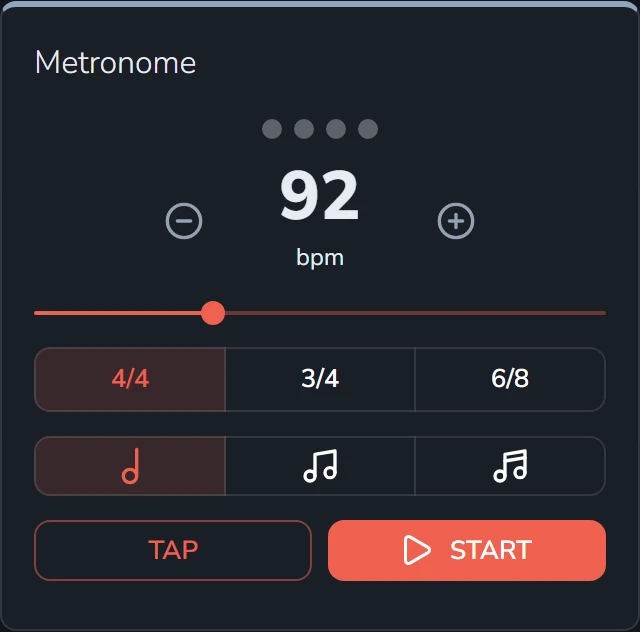
Select **Start** to begin and **Stop** to end. The dots at the top light up on each beat, and the first beat of each bar is accented so you can hear where the bar starts.
## Controls
| Control | What it does |
| -------------- | ------------------------------------------------------------------------------------------------------------------------------------------------------------ |
| Tempo | The number in the middle, in beats per minute. The **−** and **+** buttons change it one at a time, and the slider moves it quickly. It goes from 20 to 250. |
| Tap | Tap it along with the music, and the tempo follows your taps. Handy when you know how a song feels but not its number. |
| Time signature | **4/4**, **3/4** or **6/8**. In 6/8 the fourth beat gets a lighter accent too. |
| Note length | Clicks once per beat, twice per beat, or four times per beat. More clicks help with tricky rhythms and slow practice. |
## Saving a tempo
Changing the metronome doesn't change the song. To keep a tempo for next time, edit the song and set its **Tempo** and **Time Signature**. See [Songs](https://songstead.com/docs/songs.md).
---
# Foot pedals and shortcuts
Songstead works with most Bluetooth page-turner pedals, and with MIDI footswitches and foot controllers. A page-turner connects to your device as a keyboard and sends arrow or page keys, which Songstead uses to move through [Live Mode](https://songstead.com/docs/live-mode.md). The same keys work on a computer keyboard. A MIDI footswitch can do more than turn pages. See [MIDI footswitches](https://songstead.com/docs/foot-pedals.md#midi-footswitches).
> [!PLAN] Backstage
> Live Mode and foot pedal support need Backstage.
## Connect a pedal
Pair the pedal with your phone, tablet or computer in the device's Bluetooth settings, the same way you'd pair a keyboard. Set the pedal to a mode that sends arrow keys or Page Up and Page Down, if it has more than one. Then open Live Mode, and the pedal turns the pages.
## MIDI footswitches
A MIDI footswitch or foot controller can do much more than turn pages. You choose what each switch does, and one switch can do different things when pressed, held, or pressed twice. See [Control Songstead with MIDI](https://songstead.com/docs/midi-inbound-triggers.md).
## Live Mode keys
| Key | What it does |
| ---------------------------------- | ---------------------------------------------------------------------------------------- |
| Right arrow, Down arrow, Page Down | Moves forward. |
| Left arrow, Up arrow, Page Up | Moves back. |
| Space, Enter | Starts or pauses [autoscroll](https://songstead.com/docs/autoscroll.md), when **Scroll Direction** is **Vertical**. |
## Annotation keys
While the [annotation](https://songstead.com/docs/annotations.md) tools are open, each tool has a letter.
| Key | Tool |
| --- | ----------- |
| V | Select |
| P | Pen |
| H | Highlighter |
| A | Arrow |
| T | Text |
| S | Stamp |
| R | Record |
| E | Eraser |
These work alongside the tools:
| Key | What it does |
| ------------------------- | ---------------------------------------------------------------------- |
| Ctrl+Z, or Cmd+Z on a Mac | Undo. |
| Ctrl+Shift+Z or Ctrl+Y | Redo. |
| Ctrl+C and Ctrl+V | Copy and paste the selected annotations, including onto another chart. |
| Delete, Backspace | Delete the selected annotations. |
| Escape | Clear the selection, or close the tools when nothing is selected. |
Shortcuts don't fire while you're typing in a field or while a dialog or menu is open.
---
# Annotations
Annotations are marks you add on top of a chart: drawings, highlights, arrows, text notes, stamps and short audio recordings. They work on text charts and on PDF and image charts, and they show in Live Mode.
For a note that should be part of the chart itself, for everyone who opens it, a ChordPro comment like `{c: Drums only}` may suit better. See [Directives](https://songstead.com/docs/chart-formats.md#directives).
## Open the tools
Open a song and select the annotation button, the squiggle at the left end of the toolbar at the bottom of the chart. In Live Mode, it's the squiggle in the top bar. With a stylus, you can start drawing on the chart and the tools open on their own.
The tools appear in a bar along the bottom of the screen, with the layer you're drawing on at the right end.

## Tools
| Tool | Key | What it does |
| ----------- | --- | -------------------------------------------------------------------------------------------------------------------------- |
| Select | V | Selects annotations to move, resize, edit or delete. Drag across several to select them all. |
| Pen | P | Draws freehand. |
| Highlighter | H | Highlights words. |
| Arrow | A | Draws a line or an arrow, like one pointing at the beat where a cue lands. |
| Text | T | Adds a typed note. Text notes can be found with [search](https://songstead.com/docs/search.md). |
| Stamp | S | Places a mark you use often, like a repeat count, a dynamic or an emoji. **Customize stamps** lets you make your own list. |
| Record | R | Records a short audio clip and places it on the chart. Select the chart where the clip should go. |
| Eraser | E | Removes the annotations you touch. |
Each tool remembers its own settings, like its color.

The keys work on a computer or with a keyboard attached. See [Foot pedals and shortcuts](https://songstead.com/docs/foot-pedals.md) for undo, redo, copy and paste.
> [!PLAN] Backstage
> Audio annotations need Backstage, because a recording uses file storage.
## Annotations follow the words
An annotation on a text chart is attached to the words it was drawn on, not to a spot on the screen. It stays with those words at any font size or screen width, in either Live Mode layout, after transposing, and after you edit the chart.
If you edit a chart so that an annotation's words are gone, the annotation is set aside rather than left on the wrong line. The tools show it under **Disconnected Annotations**, and you can select one to place it on the chart again.
On a file chart, an annotation is attached to a spot on the page.
## Layers
Annotations live on layers. Every chart starts with your **Personal** layer, which only you see. You can switch between layers by selecting the layer's name in the toolbar, and hide them all with **Hide Annotations**.
Owners and editors of a [group](https://songstead.com/docs/groups.md) can add layers that every member of the group sees. Select the layer name, then **New Layer**, choose the group and select **Create**. A group can have several layers on one chart, such as one for rehearsals and one for the show.
| Layer | Who sees it | Who can change it |
| ----------- | -------------------------- | ------------------------------- |
| Personal | Only you. | You. |
| Group layer | Every member of the group. | The group's owners and editors. |
Songstead remembers which layer you were looking at on each chart.
## Copy annotations to another chart
Select annotations, copy them, open another chart and paste. This is useful for bringing your marks onto a new arrangement of a song.
[Annotate a chart](https://songstead.com/docs/tutorial/annotations) in the tutorials walks through the tools with screenshots and a video.
---
# MIDI
MIDI is how keyboards, footswitches, effects and other music gear talk to each other, and Songstead can join the conversation. Your gear can control Songstead, and Songstead can control your gear, so your charts and your rig move through a set together.
> [!PLAN] Backstage
> MIDI needs Backstage.
## What Songstead can do with MIDI
- **Listen to your devices.** A footswitch, keyboard or any other MIDI device can step through [Live Mode](https://songstead.com/docs/live-mode.md), jump between songs, start autoscroll, change the key, and more. See [Control Songstead with MIDI](https://songstead.com/docs/midi-inbound-triggers.md).
- **Send to your devices.** Each song can send its own patch changes the moment it starts in Live Mode. See [Send MIDI from Live Mode](https://songstead.com/docs/midi-outbound-triggers.md).
- **Keep your rig in time.** Songstead can send MIDI clock at each song's tempo in Live Mode. See [MIDI devices and settings](https://songstead.com/docs/midi-setup.md#send-clock).
- **Give you a remote.** You can build pages of buttons, toggles and faders that send whatever you set them to. See [MIDI Remote](https://songstead.com/docs/midi-remote.md).
- **Show you what's happening.** The Monitor lists every message in and out, and what Songstead did about each one. See [MIDI Monitor](https://songstead.com/docs/midi-monitor.md).
A connected AI assistant can set up remotes, triggers and saved commands for you, too. See [Connect an AI assistant](https://songstead.com/docs/ai-agents.md).
## What you need
- **A MIDI device**, connected over USB, Bluetooth, a MIDI interface or a network.
- **Songstead on a device that can reach MIDI.** That's the Songstead app on iPhone, iPad or Android, or Chrome, Edge or Firefox on a computer.
See [MIDI compatibility](https://songstead.com/docs/midi-compatibility.md) for how each kind of connection and device compares.
## Turn MIDI on
1. Select **MIDI** in the menu.
2. On the **Setup** tab, turn on **MIDI** in the **Settings** card.
3. If you're asked whether Songstead can use your MIDI devices, allow it.
Your devices then show up under **Devices** on the same tab.

MIDI is turned on separately on each device you use Songstead on. Everything you set up is shared across all of them.
## The MIDI page
Everything to do with MIDI is on the **MIDI** page.
| Tab | What it's for |
| -------- | ------------------------------------------------------------------------------------------------------------------------------------------------------ |
| Setup | Turning MIDI on, sending clock, and your devices. See [MIDI devices and settings](https://songstead.com/docs/midi-setup.md). |
| Triggers | **Inbound** triggers, where a MIDI command makes Songstead do something, and **Outbound** triggers, where something in Songstead sends MIDI commands. |
| Saved | Saved commands: named lists of MIDI commands you can use in any trigger or remote. See [MIDI commands](https://songstead.com/docs/midi-commands.md). |
| Remote | Your remotes of buttons, toggles and faders. See [MIDI Remote](https://songstead.com/docs/midi-remote.md). |
| Monitor | Every MIDI message in and out. See [MIDI Monitor](https://songstead.com/docs/midi-monitor.md). |
## Words you'll see
| Word | What it means |
| ---------------- | ------------------------------------------------------------------------------------------------------------------------------------- |
| MIDI command | One MIDI message, like a Program Change or a Control Change, with its channel, number and value. |
| Custom command | The commands one trigger or remote control sends, set up right there and used by nothing else. |
| Saved command | A named list of MIDI commands, like "Clean tone", that you set up once and pick anywhere. Changing it changes it everywhere it's used. |
| Inbound trigger | A MIDI command arriving from a device, and what Songstead does when it arrives. |
| Outbound trigger | Something happening in Songstead, like a song starting in Live Mode, and the MIDI commands it sends. |
| Remote | Pages of buttons, toggles and faders you arrange yourself. |
## Your setup is your own
Your MIDI setup belongs to you, even on songs you share with a [group](https://songstead.com/docs/groups.md). Two people in a band can play the same song with different patches.
---
# MIDI devices and settings
The **Setup** tab of the **MIDI** page is where you turn MIDI on and see the devices Songstead knows about.
> [!PLAN] Backstage
> MIDI needs Backstage.
## Settings
| Setting | What it does |
| ---------- | ----------------------------------------------------------------------------------------------------------------- |
| MIDI | Connects Songstead to your MIDI devices. It's turned on separately on each device you use Songstead on. |
| Send Clock | Sends MIDI clock at each song's tempo while you play in [Live Mode](https://songstead.com/docs/live-mode.md). |
### Send Clock
With **Send Clock** on, Songstead sends MIDI clock to every connected device while Live Mode is open, at the tempo of the song you're on. Drum machines, delay pedals, arpeggiators and other tempo-synced gear can follow it.
- The clock changes tempo once you've moved into the next song.
- A song with no tempo stops the clock.
- Songstead sends clock only, without Start, Stop or Continue.
- Clock goes to every device, not one in particular.
Set each song's tempo on the song itself. See [Songs](https://songstead.com/docs/songs.md).
## Connect a device
- **USB:** Plug the device in, and it appears under **Devices**.
- **Bluetooth, on iPhone, iPad and Android:** Select **Pair Bluetooth** beside the **Devices** heading, and choose your device.
- **Bluetooth, on a computer:** Pair the device in the computer's own MIDI or Bluetooth settings first. See [MIDI compatibility](https://songstead.com/docs/midi-compatibility.md#bluetooth).
If you plug in or unplug a device and the list doesn't change, open the menu (the three dots) beside **Devices** and select **Refresh Devices**.
## The device list
Each device has a card of its own, with the connected ones first.
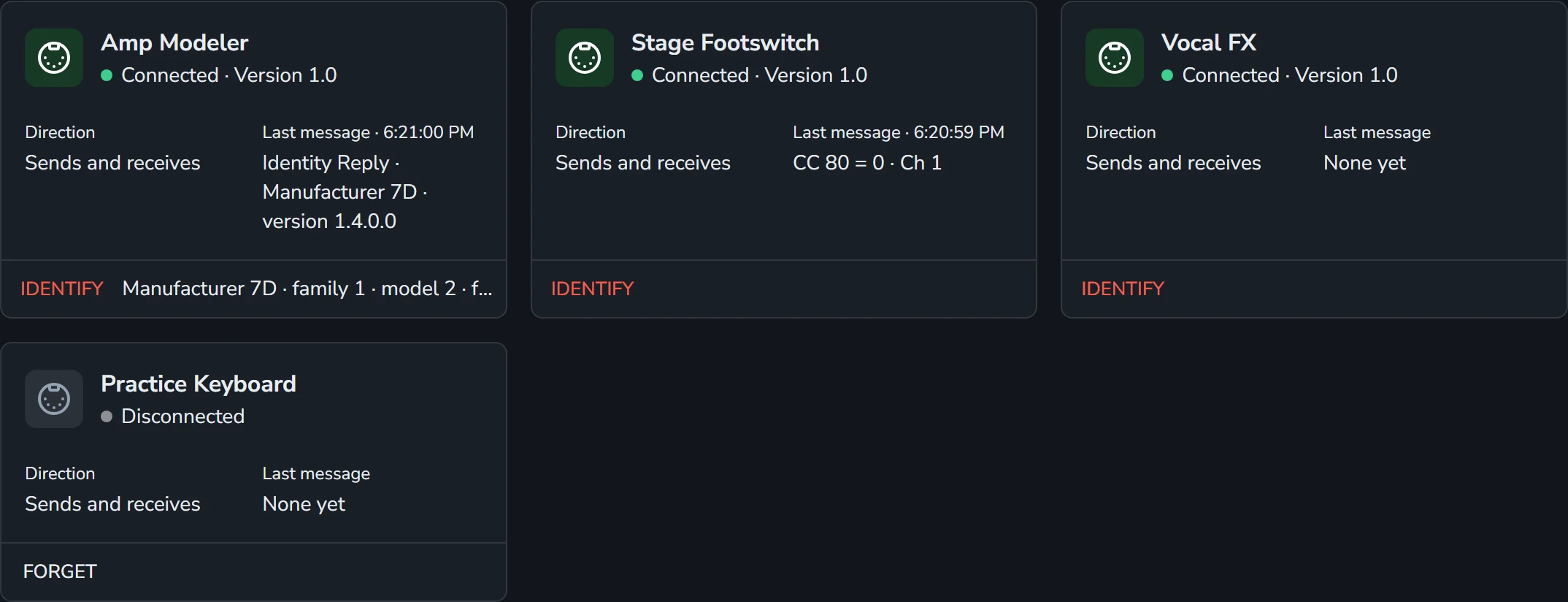
| On the card | What it shows |
| ------------ | ------------------------------------------------------------------------------------------------ |
| Name | The name the device gives itself. |
| Status | **Connected** or **Disconnected**, with the maker and version when the device reports them. |
| Direction | **Sends and receives**, **Sends only** or **Receives only**. |
| Last message | The last MIDI message to or from the device, and when. |
A device stays on the list after you unplug it, so you can still choose it when you set up a command. Songstead knows a device by its name, so two identical devices with the same name count as one.
### Identify
**Identify** asks a connected device what it is. A device that answers shows its maker, model and firmware beside the button.
### Forget
**Forget** takes a disconnected device off the list. A device that a trigger, saved command or remote control uses can't be forgotten, and its card says what's using it.
---
# MIDI commands
Whatever Songstead sends to your devices is a list of MIDI commands, sent in order. You build the list once, and an outbound trigger, a remote control, or an inbound trigger's **Send MIDI Command** action sends it.
> [!PLAN] Backstage
> MIDI needs Backstage.
## Custom and saved commands
Wherever you choose what to send, there are two tabs:
- **Custom** is a list of commands that belongs to that one trigger or control. Select **Edit Custom Command** to build it.
- **Saved** picks a saved command by name. Select **Edit Saved Command** to change it, or **Create New** to make one without leaving the trigger.
A saved command lets you describe a patch once and send it from as many songs and buttons as you like. Changing a saved command changes it everywhere it's used.
## The Saved tab
The **Saved** tab on the **MIDI** page lists your saved commands.
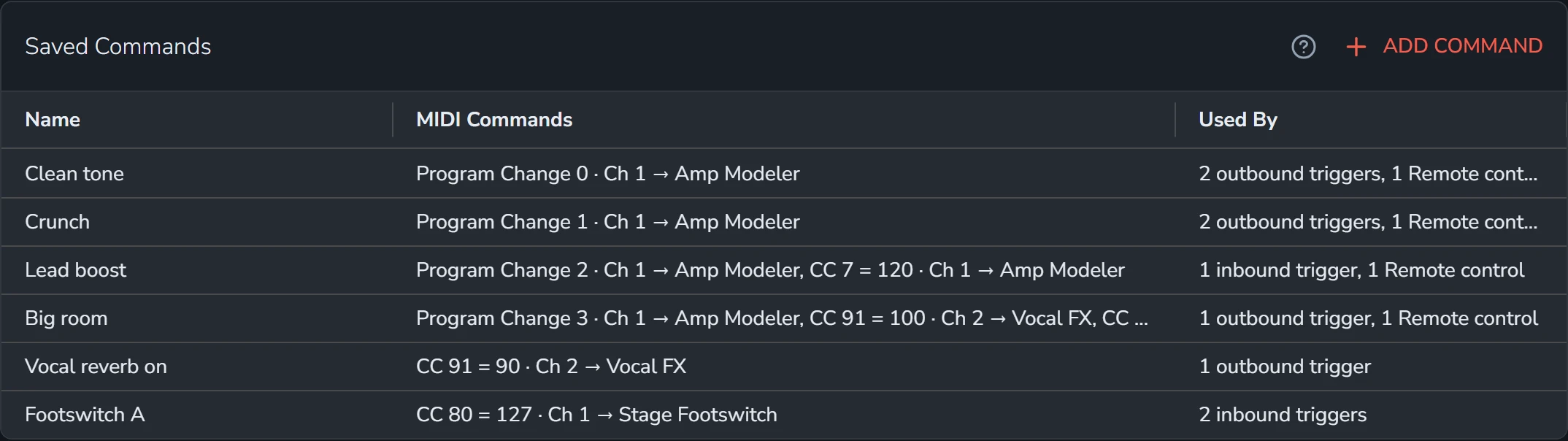
Select **Add Command** to make a saved command, or select a row to edit one.
To delete a saved command, open it and select **Delete**, then **Yes, Delete**. You can only delete one that nothing uses.
## Build the list
1. Select **Add Command**. The command's fields open under the list.
2. Choose the kind of **Command**, then fill in the rest of its fields, or select **Listen** and send it from your device.
3. Select **Add**.
4. Add more commands the same way. Drag a row by its grip to change the order.
5. Select **Save**, or **Add** for a new saved command.
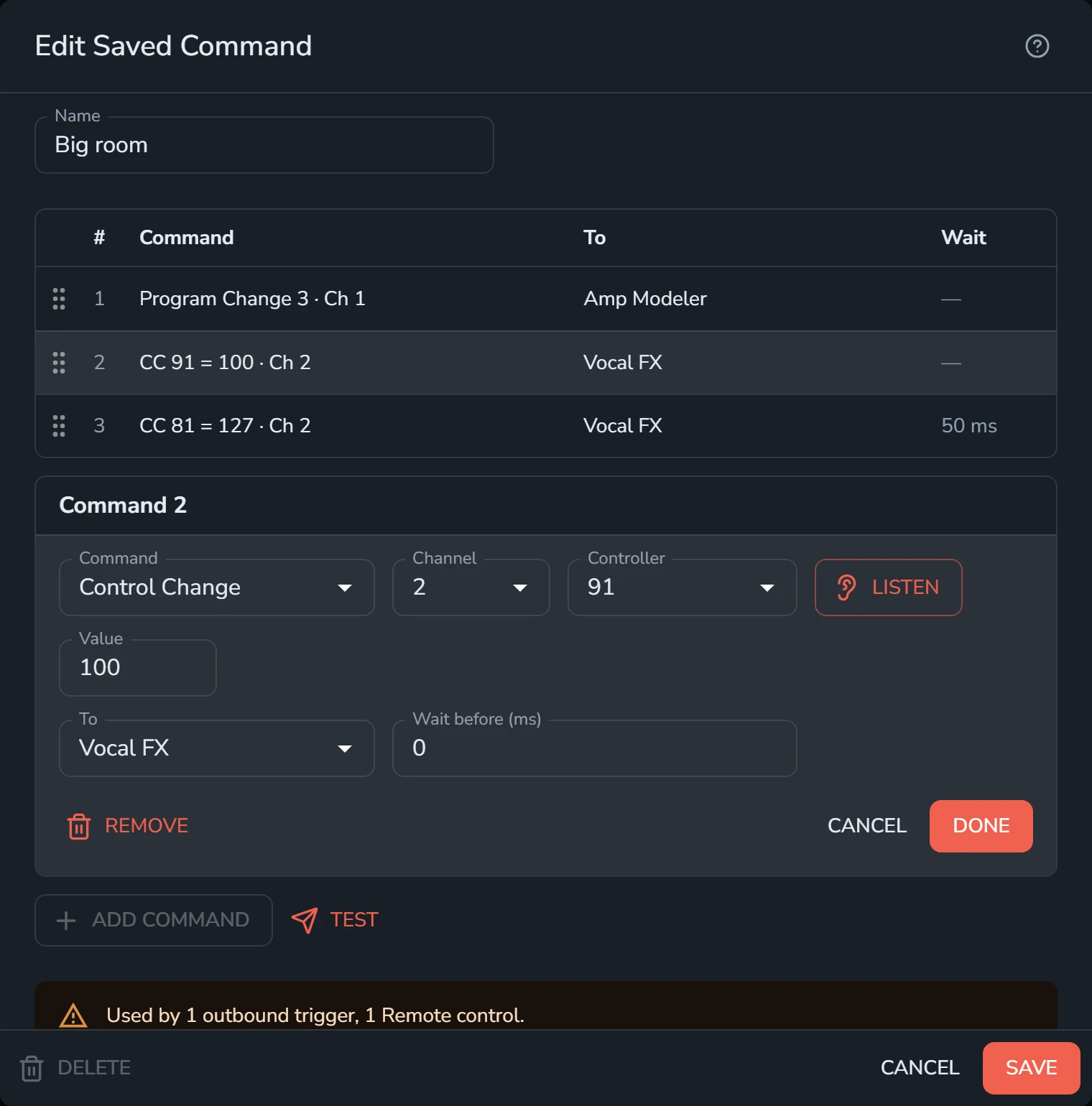
Select a command in the list to change or remove it. **Test** sends the whole list straight away, so you can hear the result before you save.
## A command's fields
| Field | What it's for |
| --------------------------------- | -------------------------------------------------------------------------------------------------------------------------------------- |
| Command | The kind of MIDI command. See the table below. |
| Channel | The MIDI channel, 1 to 16. |
| Note, Controller, Program or Song | The number the command carries, 0 to 127. You can type a note by its name, like C4. |
| Velocity, Value or Bend | How hard a note is played, what a controller is set to (0 to 127), or how far a Pitch Bend goes (−8192 to 8191). |
| Bank MSB, Bank LSB | For a Program Change, an optional bank, sent as Control Change 0 and Control Change 32 before the Program Change. |
| Hex | For **Raw Bytes**, the bytes to send, written in hex, like `F0 7E 7F 06 01 F7`. They must be whole MIDI messages: a status byte, then its data bytes. |
| To | The device it goes to, or **All devices**. |
| Wait before (ms) | How long to wait, in milliseconds, before sending this command. |
Numbers start from 0, the way they're sent. Many devices count programs from 1, so a patch your device calls 1 is usually Program 0 here. Channels count from 1.
### Kinds of command
| Command | What it sends |
| -------------- | ------------------------------------------------------------------------------------------- |
| Note On | A note starting, with its velocity. |
| Note Off | A note ending. |
| Control Change | A controller set to a value: an effect on or off, a volume, an expression pedal's position. |
| Program Change | A patch, preset or scene change. |
| Pitch Bend | The pitch wheel's position. |
| Song Select | A song number, for sequencers and drum machines that store songs. |
| Start | Starts a sequencer or drum machine from the top. |
| Continue | Starts it again from where it stopped. |
| Stop | Stops it. |
| Raw Bytes | Any bytes you type, such as System Exclusive messages. |
## Listen
**Listen** fills in a command's fields from the next message one of your devices sends. Pick a patch on your keyboard or press a switch, and Songstead fills in the kind, channel, number and value. It's the surest way to get the channel and number right.
## Where commands go
**To** sends a command to one device, or to **All devices**.
- A command for one device only goes to that device, even when several devices share a channel.
- If that device isn't connected, Songstead tells you the command failed to send.
- A command for **All devices** with nothing connected isn't sent, so you can practice without your rig.
---
# Control Songstead with MIDI
An inbound trigger lets your MIDI gear control Songstead. You choose a switch, key or other command on your device, and what Songstead does when it arrives.
> [!PLAN] Backstage
> MIDI needs Backstage.
## Add an inbound trigger
1. On the **MIDI** page, open the **Triggers** tab.
2. Select **Add Trigger** in the **Inbound** card.
3. Under **Listen for this MIDI command**, select **Edit Custom Command**, then **Add Command**. Select **Listen** and press the switch or key on your device, then select **Add**, then **Save**.
4. Under **Triggered this way**, choose the **Event**: **Received**, **Held** or **Received twice**.
5. Under **Then take this action**, choose the **Action**.
6. Select **Add**.
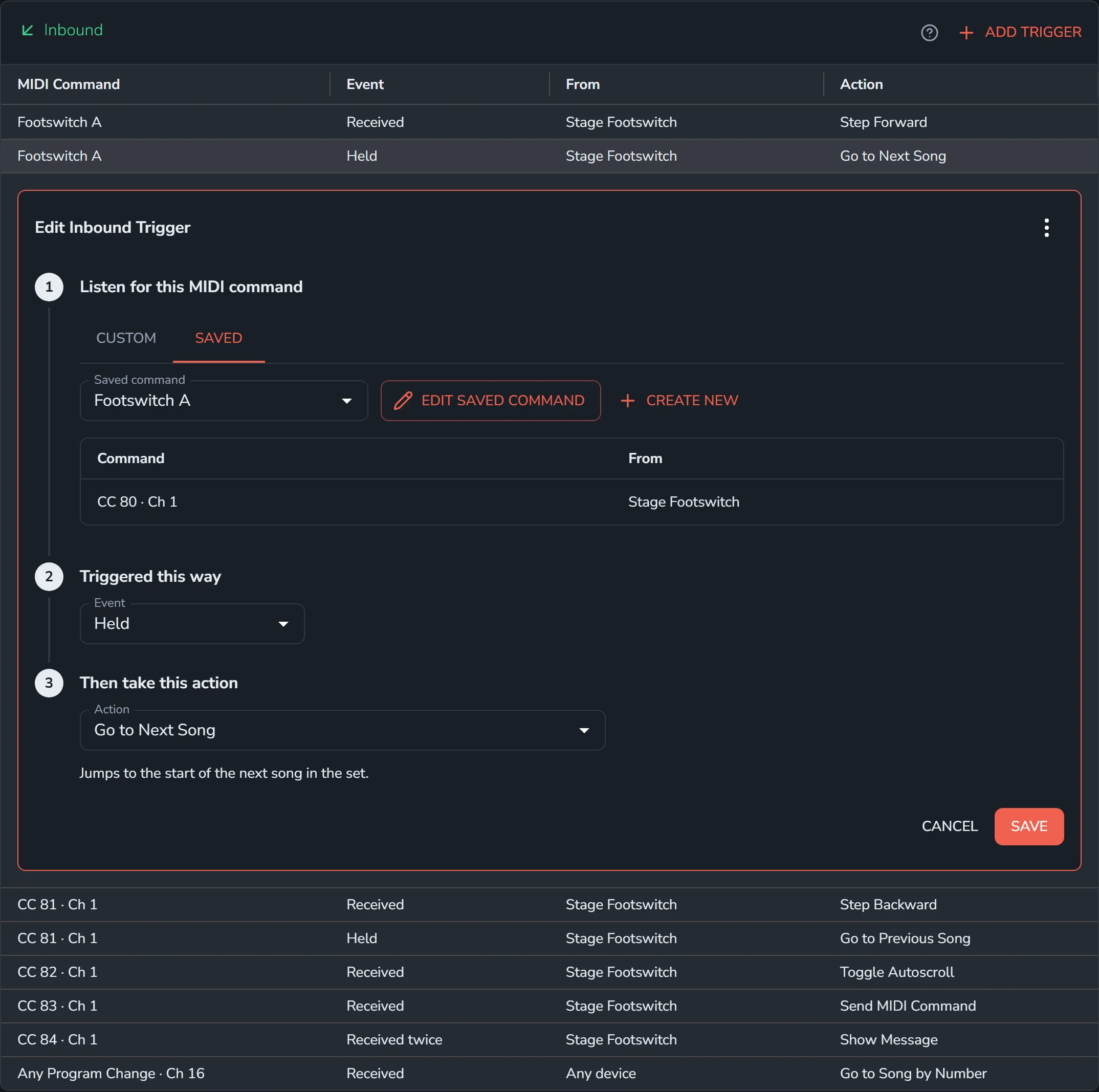
When several triggers listen for the same switch, make the switch a saved command and pick it on the **Saved** tab in step 3. See [MIDI commands](https://songstead.com/docs/midi-commands.md).
## What a trigger listens for
A trigger listens for one MIDI command. Only its kind, channel, number and device count, not its value.
| Kind | Sets the trigger off when |
| -------------- | ----------------------------------- |
| Note On | The note is played. |
| Control Change | The controller goes to 64 or above. |
| Program Change | The program arrives. |
| Song Select | The song number arrives. |
| Start | Start arrives. |
| Continue | Continue arrives. |
| Stop | Stop arrives. |
**From** is the device the command has to come from, or **Any device**.
## Events
The same switch can do up to three things, one for each event. Give each its own trigger.
| Event | When it happens |
| -------------- | ---------------------------------------------------------------------------------- |
| Received | The command arrives. |
| Held | The switch is held down for half a second. The action happens while it's still down. |
| Received twice | The switch is pressed twice in quick succession. |
**Held** and **Received twice** need a command that's released, like a note or a Control Change.
With only **Received** set up on a switch, the action happens the moment the command arrives. With **Held** or **Received twice** set up too, **Received** waits until you let go, or until it's clear no second press is coming.
Several triggers can share one switch and event, and every one of them runs.
## Actions
The Live Mode actions work in [Live Mode](https://songstead.com/docs/live-mode.md). The rest work in Live Mode and on a song page alike, and the Utility actions work on any screen.
### Live Mode
| Action | What it does |
| -------------------- | ---------------------------------------------------------------------------------------------------------------- |
| Step Forward | Turns to the next page, or scrolls forward a screen, like tapping the right of the chart. |
| Step Backward | Turns back a page, or scrolls back a screen. |
| Go to Next Song | Jumps to the start of the next song in the set. |
| Go to Previous Song | Jumps to the start of the previous song. |
| Go to Song by Number | Jumps to the song whose place in the set is the number received. See [Go to Song by Number](https://songstead.com/docs/midi-inbound-triggers.md#go-to-song-by-number). |
| Go to Start of Song | Jumps back to the start of this song. |
### Autoscroll
| Action | What it does |
| ------------------------- | --------------------------------------------------------------- |
| Toggle Autoscroll | Starts [autoscroll](https://songstead.com/docs/autoscroll.md), or stops it if it's running. |
| Start Autoscroll | Starts autoscroll. |
| Stop Autoscroll | Stops autoscroll. |
| Increase Autoscroll Speed | Scrolls a step faster. |
| Decrease Autoscroll Speed | Scrolls a step slower. |
### Performance
| Action | What it does |
| --------------- | -------------------------------------------------------------------------------------------------- |
| Raise Key | Moves this song's key up a semitone. In a set, it changes the set's key for everyone who plays it. |
| Lower Key | Moves this song's key down a semitone. |
| Raise Transpose | Transposes this song up a semitone for you, or moves the capo up a fret. |
| Lower Transpose | Transposes this song down a semitone for you, or moves the capo down a fret. |
| Reset Transpose | Puts this song's transpose or capo back to 0. |
See [Keys, capo and transposing](https://songstead.com/docs/keys-and-transposing.md) for the difference between the key and your own transpose.
### Display
| Action | What it does |
| ----------------------- | --------------------------------------------------------------- |
| Increase Font Size | Makes the chart's text a step larger. |
| Decrease Font Size | Makes the chart's text a step smaller. |
| Reset Font Size | Puts the chart's text back to its normal size. |
| Toggle Annotation Tools | Opens the [annotation](https://songstead.com/docs/annotations.md) tools, or closes them. |
| Open Annotation Tools | Opens the annotation tools. |
| Close Annotation Tools | Closes the annotation tools. |
### Utility
| Action | What it does |
| ----------------- | -------------------------------------------------------------------------------------------------- |
| Send MIDI Command | Sends MIDI commands you choose, to pass a press on to the rest of your rig. |
| Send MIDI Panic | Silences every device: All Notes Off, All Sound Off and Reset All Controllers on all 16 channels. |
| Show Message | Pops up a message you write, as a cue or a reminder. |
## Go to Song by Number
**Go to Song by Number** lets another device pick the song, such as a lighting desk, a backing-track rig or a footswitch with numbered presets.
The trigger listens for a **Program Change** or **Song Select** on one channel, and the number that arrives picks the song. Number 0 is the first song in the set, 1 the second, and so on.
## Edit or delete a trigger
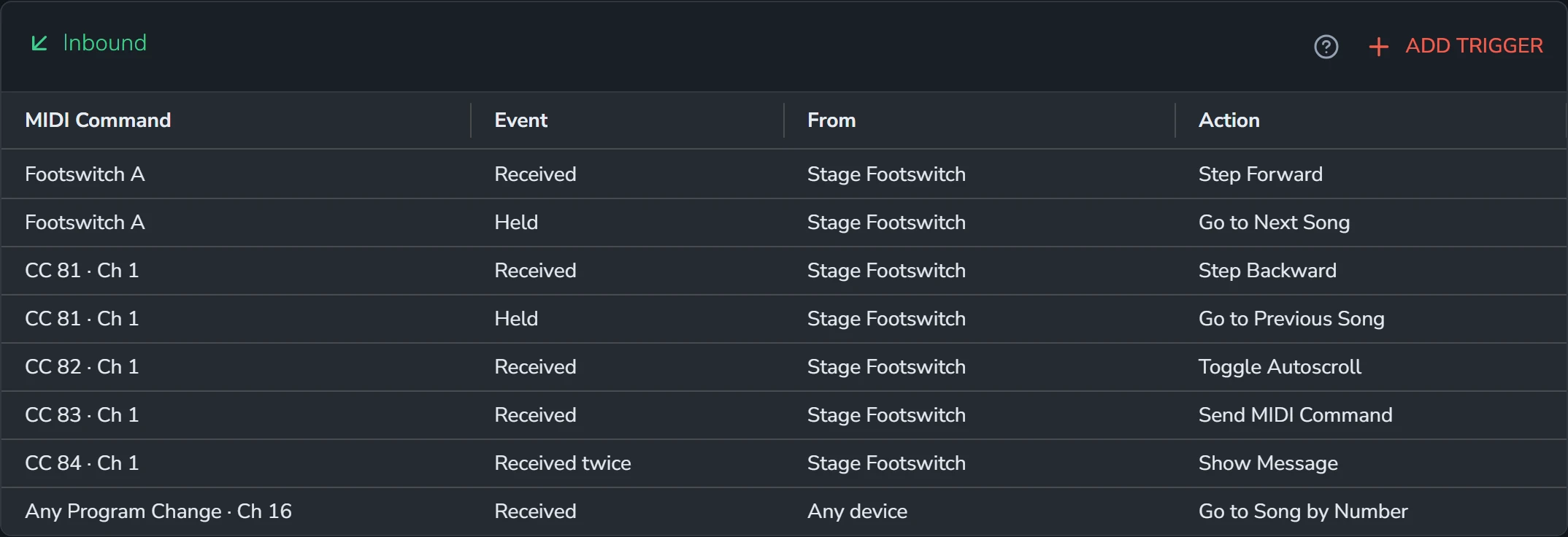
Select a row to open the trigger under it, change what you need, and select **Save**.
To delete a trigger, open it, select the menu (the three dots) at the top of its card, then **Delete** and **Yes, Delete**.
A trigger that can't work as set up shows in the warning color. See [MIDI troubleshooting](https://songstead.com/docs/midi-troubleshooting.md#a-trigger-shows-in-the-warning-color).
## MIDI and a page-turner pedal
A Bluetooth page-turner that types arrow keys isn't a MIDI device, and works in Live Mode without any of this. See [Foot pedals and shortcuts](https://songstead.com/docs/foot-pedals.md).
---
# Send MIDI from Live Mode
An outbound trigger sends MIDI commands when something happens in [Live Mode](https://songstead.com/docs/live-mode.md), most often a song starting. Your rig can change to each song's sounds as you move through the set.
> [!PLAN] Backstage
> MIDI needs Backstage.
## Add an outbound trigger
1. On the **MIDI** page, open the **Triggers** tab.
2. Select **Add Trigger** in the **Outbound** card.
3. Under **When this happens**, choose the **Event**. For **Song starts**, also choose the **Song**.
4. Under **Then send these MIDI commands**, select **Edit Custom Command** and build the list, or pick a saved command on the **Saved** tab. See [MIDI commands](https://songstead.com/docs/midi-commands.md).
5. Select **Add**.
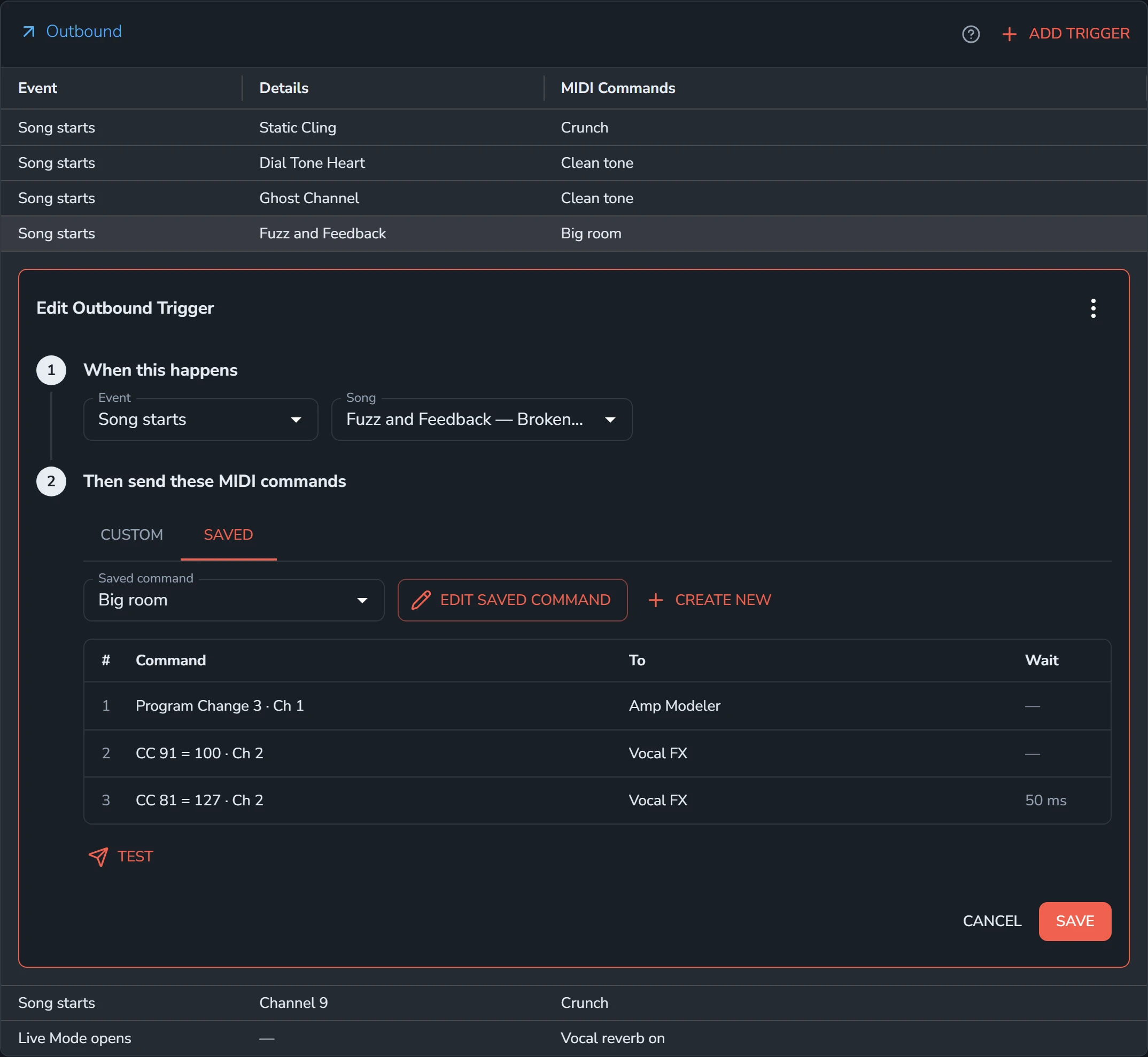
## Events
| Event | When it sends |
| ----------------- | ------------------------------------------------ |
| Song starts | The song you chose starts in Live Mode. |
| Live Mode opens | Live Mode opens, on a song or a set. |
| Autoscroll starts | [Autoscroll](https://songstead.com/docs/autoscroll.md) starts in Live Mode. |
| Autoscroll stops | Autoscroll stops in Live Mode. |
Outbound triggers only send from Live Mode.
A **Song starts** trigger sends in every set the song is in. A song can have several, and each one sends.
## When a song starts
- **Live Mode opens at the start of the set**, before the first song. Move forward and the first song starts.
- **Every song but the last ends at a pause** marked **Advance to next song**. Move forward past it and the next song starts.
- **Picking a song starts it.** **Go to Next Song**, **Go to Previous Song**, **Go to Song by Number** and **Go to Start of Song** all start the song they go to. See [Control Songstead with MIDI](https://songstead.com/docs/midi-inbound-triggers.md).
- **Moving back never starts a song.**
## Edit or delete a trigger
Select a row in the **Outbound** table to open the trigger under it, change what you need, and select **Save**.
To delete a trigger, open it, select the menu (the three dots) at the top of its card, then **Delete** and **Yes, Delete**.
## MIDI clock
To keep tempo-synced gear in time with each song, turn on **Send Clock** on the **Setup** tab. See [MIDI devices and settings](https://songstead.com/docs/midi-setup.md#send-clock).
---
# MIDI Remote
A remote turns your screen into a control surface for your rig. You lay out pages of buttons, toggles and faders yourself, and each one sends the MIDI commands you choose.
> [!PLAN] Backstage
> MIDI needs Backstage.

## Make a remote
1. On the **MIDI** page, open the **Remote** tab.
2. Select **New Remote**.
3. Type a **Name**, like Keyboard.
4. Choose how many **Columns** its pages have, or pick **Phone**, **Tablet** or **Desktop**.
5. Select **Create**. The new remote opens ready to edit.
You can have as many remotes as you like, such as one for your phone and one for your tablet. The **Remote** list at the top of the tab switches between them.
## Add a control
1. Select **Edit**, the pencil button at the top right.
2. Select the plus on any empty square of the page.
3. Under **Choose a kind of control**, choose the **Kind**.
4. Under **Name it and pick a color**, type a **Name** and pick a color. The sun button after the colors switches them to a lighter shade.
5. Under the third step, choose what it sends. See [MIDI commands](https://songstead.com/docs/midi-commands.md).
6. Select **Add**.
7. When you're finished editing, select **Save**, the disk button at the top right.
### Kinds of control
| Kind | What it does |
| ------ | ------------------------------------------------------------------------------------------------------------------------------------------------------------------- |
| Button | Sends its commands when you select it. |
| Toggle | Sends one set of commands when it's turned on and another when it's turned off. When your device sends one of those commands back, the toggle follows it. |
| Fader | Sends a Control Change from 0 to 127 as it moves. Choose the controller under **Then drive this controller**. When your device sends that controller back, the fader follows it. |
| Text | A heading for the controls around it. It sends nothing. |
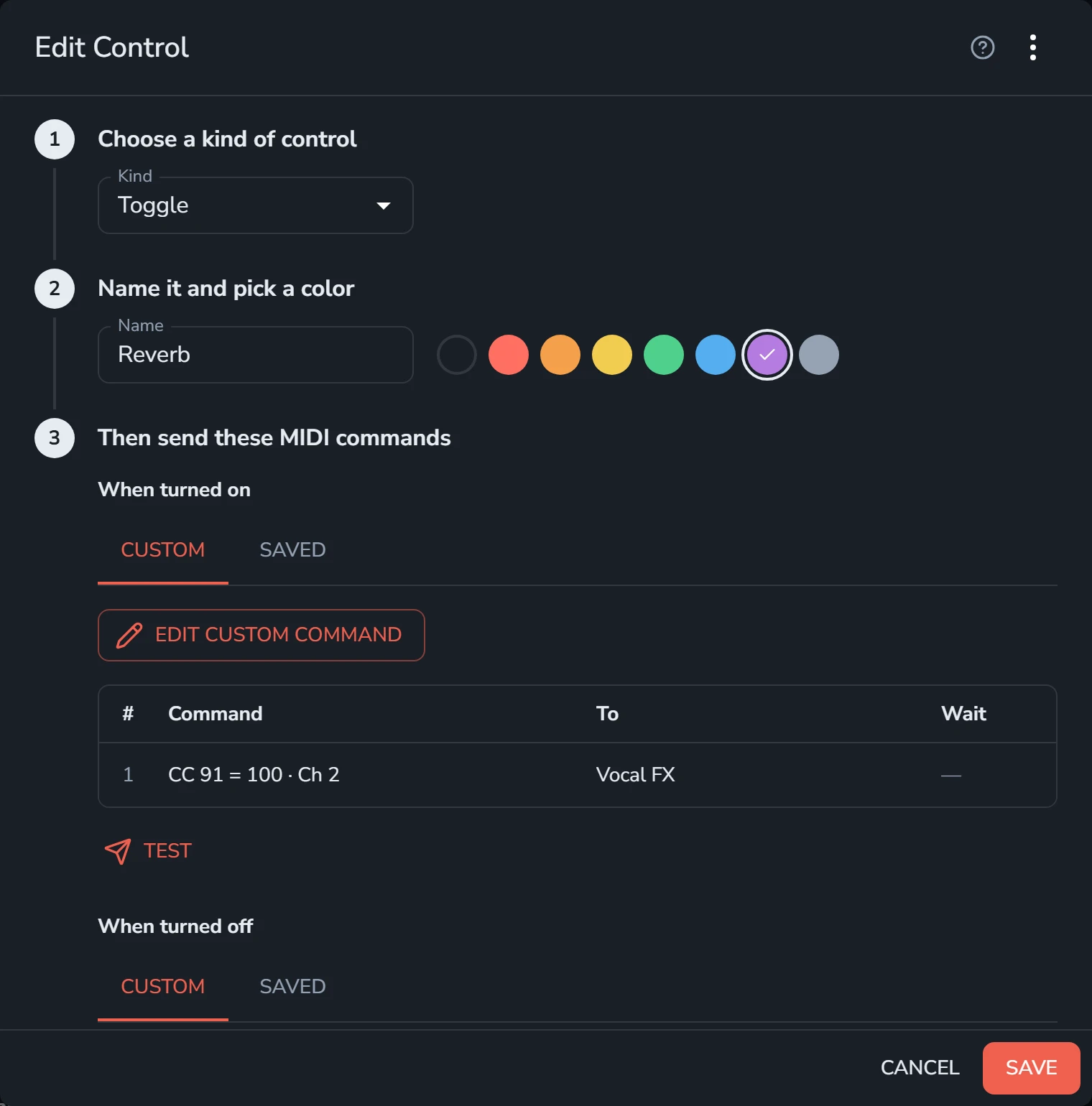
## Arrange a page
While you're editing:

- **Move a control** by dragging it. With a finger, hold it for a moment first.
- **Resize a control** by dragging its bottom-right corner.
- **Change a control** by selecting it. **Delete** is in its dialog's menu (the three dots).
## Pages
A remote can have several pages. Swipe between them, or select a dot under the remote to go to that page.
- **Add a page** with **Add Page** beside the dots while editing.
- **Delete a page** with **Delete Page** in the menu (the three dots) while editing. This deletes every control on it.
## Remote settings
While editing, the menu (the three dots) at the top right has:
| Menu item | What it does |
| --------------- | --------------------------------------------------------------- |
| Full Screen | Shows the remote alone over the whole screen. |
| Remote Settings | Changes the remote's name and columns. |
| Delete Page | Deletes the page you're on and every control on it. |
| Delete Remote | Deletes the remote and every control on it. |
## Full screen
**Full Screen** in the remote's menu shows the remote over the whole screen, with the **Remote** list and **Exit Full Screen** at the top.
---
# MIDI Monitor
The **Monitor** tab on the **MIDI** page shows every MIDI message Songstead sends and receives, and what came of each one. It's the quickest way to check that a device is talking to Songstead and that a trigger does what you meant.
> [!PLAN] Backstage
> MIDI needs Backstage.
## What each row shows
Each row is one thing happening, newest first: a message arriving, or something in Songstead sending messages out.

| Column | What it shows |
| --------- | --------------------------------------------------------------------------------------------------------------------- |
| Time | When it happened. |
| Direction | **In** for a message from a device, **Out** for messages Songstead sent, and **Action** for something else Songstead did. |
| Trigger | What set it off: the message that came in, or what happened in Songstead, like a song starting or a remote control. |
| Response | What came of it: the actions Songstead took, or the messages it sent. A dash means nothing came of it. |
| Device | The device the message came from or went to. |
| Hex | The message's bytes in hex. |
A message that couldn't be sent says **Not sent**, with the reason.
## Clock and active sensing
MIDI clock and active sensing arrive many times a second, so they get one row per device, in a section of their own at the top. A clock's row shows its tempo.
## Filter
Type in **Filter** to show only the rows with the words you type.
## Send a message by hand
The row at the top of the Monitor sends any bytes you like:
1. Type the bytes in hex in **Send hex**, like `B0 07 64`.
2. Choose where it goes under **To**, or leave it on **All devices**.
3. Select **Send**.
## The Monitor's menu
The menu (the three dots) at the top right of the Monitor has:
| Menu item | What it does |
| --------- | ---------------------------------------------------------------------------------------------------------------------- |
| Pop Out | Opens the Monitor in a window of its own, so you can watch it beside a song or another program. On a computer only. |
| Clear | Empties the Monitor. |
| Panic | Silences every device: All Notes Off, All Sound Off and Reset All Controllers on all 16 channels. Use it for a stuck note. |
---
# Common MIDI setups
These are step-by-step setups for the most common uses of MIDI. Each one starts with MIDI turned on and your device connected. See [MIDI](https://songstead.com/docs/midi.md) to get that far.
> [!PLAN] Backstage
> MIDI needs Backstage.
## Turn pages with a MIDI footswitch
Two switches on a MIDI foot controller can move forward and back through [Live Mode](https://songstead.com/docs/live-mode.md).
1. On the **Triggers** tab, select **Add Trigger** in the **Inbound** card.
2. Select **Edit Custom Command**, then **Add Command**. Select **Listen** and press your forward switch, then select **Add**, then **Save**.
3. Leave the **Event** on **Received**, and choose **Step Forward** as the **Action**.
4. Select **Add**.
5. Do the same for your back switch, with **Step Backward**.
The same two switches can also jump a whole song when you hold them. Add a trigger to each with the **Held** event: **Go to Next Song** on the forward switch and **Go to Previous Song** on the back one. See [Control Songstead with MIDI](https://songstead.com/docs/midi-inbound-triggers.md#events).
## Change patches as each song starts
Your keyboard, amp modeler or effects can change to the right sound the moment each song starts in Live Mode.
1. On the **Saved** tab, select **Add Command**, and give it a **Name**, like Clean tone.
2. Select **Add Command**, then **Listen**, and pick the patch on your device. Select **Add**, then **Add** again.
3. Make a saved command for each sound you use.
4. On the **Triggers** tab, select **Add Trigger** in the **Outbound** card.
5. Choose **Song starts** as the **Event**, and the song as the **Song**.
6. Open the **Saved** tab under **Then send these MIDI commands**, and choose the saved command.
7. Select **Add**, and do the same for each song.
A song can change several devices at once. Give its saved command one command for each device, each with its own **To**. See [Send MIDI from Live Mode](https://songstead.com/docs/midi-outbound-triggers.md).
## Let another device pick the song
A lighting desk, a backing-track computer or a footswitch with numbered presets can choose the song in Live Mode by sending a Program Change.
1. On the **Triggers** tab, select **Add Trigger** in the **Inbound** card.
2. Choose **Go to Song by Number** as the **Action**.
3. Select **Edit Custom Command**, then **Add Command**. Select **Listen** and send any Program Change from the device, then select **Add**, then **Save**.
4. Select **Add**.
Program 0 now goes to the first song in the set, Program 1 to the second, and so on. See [Go to Song by Number](https://songstead.com/docs/midi-inbound-triggers.md#go-to-song-by-number).
## Keep tempo-synced gear in time
A delay pedal, drum machine or arpeggiator can follow each song's tempo.
1. Give each song its tempo. See [Songs](https://songstead.com/docs/songs.md).
2. On the **Setup** tab, turn on **Send Clock**.
3. Set your device to follow external MIDI clock, in its own settings.
See [Send Clock](https://songstead.com/docs/midi-setup.md#send-clock).
## Pass a press on to the rest of your rig
One footswitch press can turn the page and switch on an effect at the same time.
1. Add an inbound trigger for the switch, as in [Turn pages with a MIDI footswitch](https://songstead.com/docs/midi-examples.md#turn-pages-with-a-midi-footswitch).
2. Add a second inbound trigger for the same switch and the same **Event**, and choose **Send MIDI Command** as its **Action**.
3. Under the action, select **Edit Custom Command** and add what the effect needs, like a Control Change.
4. Select **Add**.
## A remote for your keyboard rig
A tablet on the music stand can hold the controls you reach for most.
1. On the **Remote** tab, select **New Remote**, name it, choose **Tablet**, and select **Create**.
2. Select the plus on an empty square, and add a **Toggle** named Rotary, sending one Control Change to turn on and another to turn off.
3. Add a **Fader** named Expression, driving your keyboard's expression controller, often Control Change 11.
4. Add a **Text** control named Organ over them as a heading.
5. Select **Save**, the disk button at the top right.
See [MIDI Remote](https://songstead.com/docs/midi-remote.md).
---
# MIDI compatibility
MIDI gear connects in several ways, and not every device can use all of them. Whether your gear works with Songstead mostly comes down to how it connects and what you connect it to.
> [!PLAN] Backstage
> MIDI needs Backstage.
## At a glance
| Connection | Good for | Watch out for |
| ----------------- | ---------------------------------------------- | ---------------------------------------------------------------- |
| USB | Anything with a USB port. The most dependable. | A cable to run, and an adapter for most phones and tablets. |
| 5-pin MIDI | Older keyboards, rack gear and many pedals. | Needs a USB MIDI interface in between. |
| Bluetooth | Footswitches and small controllers, no cable. | Batteries, pairing, a slight delay, and little support on Windows. |
| Network (Wi-Fi) | Linking a tablet to a computer in your rig. | Only as reliable as the network. Not on Android. |
| Device | Use | USB | Bluetooth | Network |
| ------------ | ----------------------- | --- | ------------------------------- | ------------------- |
| iPhone, iPad | The Songstead app | Yes | Yes, with **Pair Bluetooth** | Yes |
| Android | The Songstead app | Yes | Yes, with **Pair Bluetooth** | No |
| Mac | Chrome, Edge or Firefox | Yes | Yes, paired in Audio MIDI Setup | Yes |
| Windows | Chrome, Edge or Firefox | Yes | Limited | With extra software |
## USB
Most modern MIDI controllers, footswitches and keyboards plug straight in over USB and need no setup. USB is the most dependable way to connect: there's nothing to pair, no batteries to run down, and no delay you'd notice.
- **iPhone and iPad:** A model with a USB-C port takes the device's cable directly, or through a USB-C adapter or hub. A model with a Lightning port needs Apple's Lightning to USB Camera Adapter.
- **Android:** Most phones and tablets take a USB device through a USB-C adapter.
- **Power:** A phone or tablet can't always power a device that draws its power over USB. A powered USB hub between them fixes that.
- **Windows:** A USB MIDI device can often be used by only one program at a time. If Songstead can't see a device, close other music software.
## 5-pin MIDI
Many keyboards, amp modelers, effects units and rack gear have round 5-pin MIDI ports instead of USB. They connect through a USB MIDI interface, which plugs in like any USB device.
Each of the interface's ports shows up in Songstead as a device of its own. Gear chained from one port shares it, so give each piece of gear its own MIDI channel.
Small pedals often have a 3.5 mm MIDI jack instead, called TRS MIDI. These need an adapter to 5-pin, and there are two wiring standards, Type A and Type B. Check which one your pedal uses before you buy an adapter.
## Bluetooth
Bluetooth MIDI connects without a cable, and has a few drawbacks:
- **A slight delay**, too small to notice on a page turn, but sometimes felt when playing notes.
- **Batteries** in the pedal, which you'll want charged before a gig.
- **Dropouts** at a distance or in a room full of phones. Keep the device within a few meters.
A Bluetooth MIDI device doesn't connect through the ordinary Bluetooth settings. Pair it in the right place for what you're using:
- **iPhone, iPad and Android:** Select **Pair Bluetooth** beside **Devices** on the **Setup** tab of the **MIDI** page, and choose the device. Songstead connects it again the next time MIDI starts.
- **Mac:** Open Audio MIDI Setup, choose **Window**, then **Show MIDI Studio**, and select the Bluetooth button to connect the device.
- **Windows:** Windows has little support for Bluetooth MIDI, and the browsers on it often can't see a Bluetooth MIDI device even once it's paired. Use USB, or a Bluetooth MIDI adapter that plugs into a USB port.
A Bluetooth page-turner that types arrow keys isn't a MIDI device, and needs none of this. See [Foot pedals and shortcuts](https://songstead.com/docs/foot-pedals.md).
## Network MIDI
Network MIDI, also called RTP-MIDI or Apple MIDI, carries MIDI over Wi-Fi or a wired network. It can link an iPad running Songstead to a computer running your rig.
- **iPhone and iPad:** With MIDI turned on, the Songstead app can be reached over the network. Connect to it from the other computer, such as a Mac's MIDI Network Setup.
- **Mac:** Network MIDI is built in, under MIDI Network Setup in Audio MIDI Setup.
- **Windows:** Network MIDI needs extra software, such as rtpMIDI.
- **Android:** Android doesn't support network MIDI.
Network MIDI is only as steady as the network under it. A venue's Wi-Fi, shared with an audience, is a poor choice. A small router of your own, or a network cable, keeps it reliable.
## Browsers
On a computer, Songstead runs in a browser, whether you open it there or install it as an app.
| Browser | MIDI |
| ---------------- | ---------------------------------------------------------------------------------------- |
| Chrome | Yes. |
| Edge | Yes. |
| Firefox | Yes. The first time, Firefox asks to add a site permission for songstead.com. Allow it. |
| Safari | No. On a Mac, use Chrome, Edge or Firefox. |
Every browser on iPhone and iPad is built on Safari's engine, so none of them can reach MIDI devices. Use the Songstead app instead.
## Sharing a device with other apps
On iPhone, iPad and Mac, several apps can use one MIDI device at the same time. On Windows, the first program to open a device often keeps it to itself.
In the Songstead app, turning MIDI off lets go of your devices, so other apps can have them.
---
# MIDI troubleshooting
Most MIDI problems come down to Songstead not seeing a device, or a trigger set up for a slightly different command than the device sends. The [Monitor](https://songstead.com/docs/midi-monitor.md) shows exactly what arrives and what goes out, so it's the place to start.
> [!PLAN] Backstage
> MIDI needs Backstage.
> [!IMPORTANT]
> A device that shows as **Connected** isn't necessarily sending anything Songstead can hear. Many things can stop its commands on the way, in the device's own settings, the cable or connection, or the device you run Songstead on. When the Monitor shows nothing arriving from a connected device, the cause is almost always the device or the platform, not Songstead. See [A device is connected but nothing arrives](https://songstead.com/docs/midi-troubleshooting.md#a-device-is-connected-but-nothing-arrives).
## "This browser can't reach MIDI devices"
Safari, and every browser on iPhone and iPad, can't reach MIDI devices. Use the Songstead app, or Chrome, Edge or Firefox on a computer. See [MIDI compatibility](https://songstead.com/docs/midi-compatibility.md#browsers).
## "MIDI access was blocked"
Songstead was refused permission to use MIDI devices. Allow MIDI for songstead.com in the browser's site settings, then reload Songstead.
## "Waiting for MIDI access"
The browser is asking whether Songstead can use your MIDI devices. Look for its prompt, usually near the address bar, and allow it.
## "This version of the app can't reach MIDI devices"
Update the Songstead app from the App Store or Google Play.
## A device doesn't show up
- Check that **MIDI** is turned on in **Settings** on the **Setup** tab. It's turned on separately on each device you use Songstead on.
- Open the menu (the three dots) beside **Devices** and select **Refresh Devices**.
- For a Bluetooth device on iPhone, iPad or Android, select **Pair Bluetooth**. On a computer, pair it in the computer's own settings first. See [MIDI compatibility](https://songstead.com/docs/midi-compatibility.md#bluetooth).
- Another program may be holding the device. Close other music software and select **Refresh Devices** again.
## A device is connected but nothing arrives
Press a switch or play a key and watch the **Monitor**. If no **In** row appears, the commands aren't reaching Songstead. Common causes:
- **The device's MIDI output is off, or sent elsewhere.** Many devices choose in their own settings whether MIDI goes out over USB, the 5-pin port or Bluetooth, or not at all.
- **The device has more than one port.** Some show up as two or three devices, and send their switches and keys on only one of them. Try each.
- **The cable only charges.** Some USB cables carry power and no data. Try the cable the device came with.
- **The cables are crossed.** On 5-pin MIDI, the device's MIDI Out goes to the interface's MIDI In.
- **Another program has the device.** Close other music software, especially on Windows.
- **The Bluetooth connection has dropped** while the device still shows. Turn the device off and on, and pair it again.
The device's manual, or its maker's support, is the best help with any of these. See [MIDI compatibility](https://songstead.com/docs/midi-compatibility.md) for what each kind of connection and device can do.
The free [MIDI Tester & Monitor](https://songstead.com/tools/midi-tester) checks a device with nothing from your Songstead setup involved. If nothing arrives there either, the cause is the device or its connection.
## A trigger does nothing
1. Open the **Monitor** tab and press the switch. If no **In** row appears, Songstead isn't hearing the device: see [A device is connected but nothing arrives](https://songstead.com/docs/midi-troubleshooting.md#a-device-is-connected-but-nothing-arrives).
2. If the row appears with a dash under **Response**, no trigger matched it. The trigger's kind, channel, number and device all have to match the row. Setting the command up again with **Listen** is the surest fix.
3. If the **Response** shows the action but nothing changed, the action had nothing to act on there. The Live Mode actions only work in Live Mode, and the key, transpose, font size and annotation actions need a song open. See [Actions](https://songstead.com/docs/midi-inbound-triggers.md#actions).
A Control Change only sets a trigger off when its value goes to 64 or above. A switch that sends 0 when pressed and 127 when let go acts on release. Many footswitches have a setting to swap that.
## A trigger shows in the warning color
The trigger's command can't do what the trigger asks. Open it, and its card says why:
| Message | What to do |
| ---------------------------------------------------------------------------- | --------------------------------------------------------------------------------------- |
| This command can't set anything off. | Choose a Note On, Control Change, Program Change, Song Select, Start, Continue or Stop. |
| Held and Received twice need a command that's released. | Use a note or a Control Change, or change the **Event** to **Received**. |
| Going to a song needs a Program Change or Song Select. | Choose one of those two. |
| An inbound trigger listens for one command, and this saved command has more. | Edit the saved command down to one command, or give the trigger a different command. |
An outbound trigger for **Song starts** shows in the warning color when its song isn't chosen.
## "Failed to send MIDI command to" a device
The command is set to go to that one device, and it isn't connected. Connect it, or change the command's **To** to another device or **All devices**. See [Where commands go](https://songstead.com/docs/midi-commands.md#where-commands-go).
## A device gets the wrong patch
Songstead counts programs from 0, and many devices count them from 1. Patch 1 on your device is usually Program 0 in Songstead. Using **Listen** while you pick the patch on the device gets it right every time.
## A patch changes at the wrong moment in Live Mode
A song's commands go out when you move forward into the song, past the pause at the end of the song before. See [When a song starts](https://songstead.com/docs/midi-outbound-triggers.md#when-a-song-starts).
## A note is stuck
Select **Panic** in the Monitor's menu (the three dots). It silences every device on every channel.
---
# Groups and roles
A group shares songs and sets between people: a band, a worship team, a choir, or a teacher and their students. Everyone in a group works from the same songs and sets, and a change one person makes shows up for everyone else.
> [!PLAN] Harmony
> Creating a group needs Harmony. Joining someone else's group is free on every plan.
## Your Personal group
Every account has a **Personal** group that only you can see. It can't be renamed, shared or left. Songs and sets you make go there unless you pick another group.
## The Groups page
**Groups** in the menu lists the groups you belong to, with how many members, songs and sets each has, and your role in it. If you own groups, the top of the page shows how many of your Harmony seats are free.

Invites waiting for you show up here under **Pending Invites**, with **Accept** and **Decline**.
## Create a group
Select **New Group** on the **Groups** page, type a name, and select the save button. You're the group's owner.
## Invite people
Select a group to open it. Under **Members**, type the person's email address, choose their **Role**, and select **Send Invite**. Songstead emails them a link.

The person you invite finds the invite on their own **Groups** page and selects **Accept**. If they don't have an account yet, they can make one from the link in the email.
Invites you've sent are listed with the members until they're answered. You can change an invite's role, or select **Cancel Invite** from its menu.
## Seats
Each person in your groups uses one seat on your Harmony plan, and you count as one. Someone in two of your groups still uses one seat. You can't send an invite once every seat is used. See [Plans and limits](https://songstead.com/docs/plans.md).
## Roles
| Role | What they can do |
| ------ | --------------------------------------------------------------------------------------------------------------------------------------------------------------- |
| Owner | Everything an editor can, and also rename or delete the group, invite and remove people, and change roles. Each group has one owner: the person who created it. |
| Editor | See, create, change and delete the group's songs and sets, and manage its tags, shared annotation layers and calendar feed. |
| Viewer | See the group's songs and sets. Viewers can still set their own key and capo, add personal tags, and draw personal annotations. |
To change someone's role, open the menu beside their name and choose **Make Editor** or **Make Viewer**. **Remove Member** takes them out of the group.
## Share a song or set
A song or set belongs to one group at a time. To share one, edit it and change its **Group** from **Personal** to the group. To make it private again, change it back.
Only the person who created a song or set can move it to another group, and only between groups where they're an owner or editor. A set can only hold songs from its own group, so move a set's songs into the group before the set.
## What stays yours
On a shared song, some things are yours alone, and nobody else in the group sees them:
- The key you play the song in, outside of a set.
- Your capo or transpose, everywhere.
- Your personal tags. See [Tags](https://songstead.com/docs/tags.md).
- Your **Personal** annotation layer. See [Annotations](https://songstead.com/docs/annotations.md).
Everything else is shared: the song's details, charts and files, the group's tags, the group's annotation layers, and each set's keys and charts.
## When sharing is paused
If the owner's Harmony plan ends, their groups are switched off. Members and anyone with a pending invite can't see the groups' songs and sets until Harmony is back. Nothing is deleted.
The same thing happens if a group owner has more people in their groups than their plan has seats. Adding seats on the **Plan** page, or removing people, turns the groups back on.
The owner sees a message on the **Groups** and **Plan** pages saying why, with a button to fix it. See [Billing and payments](https://songstead.com/docs/billing.md).
## Leave or delete a group
A member can leave a group from the menu at the top right of the group's page. The songs and sets they added stay in the group for everyone else.
The owner can't leave their own group, but can delete it from the same menu. Deleting a group deletes its songs and sets too. Before you delete one, move any songs and sets you created and want to keep into your **Personal** group, and let other members do the same with theirs.
If an owner deletes their account, the groups they own are deleted with it.
---
# Importing
You can bring a whole library into Songstead at once, from a backup of another app or from a folder of charts. Songstead reads everything first and shows you what it found, so nothing is imported until you've checked it.
## What Songstead can import
| Source | What comes across |
| ------------------ | ----------------------------------------------------------------------------------------------------------------------------------------------------------------------------------- |
| OnSong backup | Songs, sets, and the files attached to songs. |
| SongbookPro backup | Songs, sets, and the files attached to songs. |
| ZIP archive | Every song or file inside it, including folders within folders. |
| Text files | One song per file, in ChordPro or chords over lyrics. Details in ChordPro directives or an OnSong-style header become the song's title, artist, tempo, time signature and duration. |
| PDFs and images | Each loose file becomes a song with the file as its chart. |
Songstead recognizes an OnSong or SongbookPro backup from its contents, so you don't have to tell it which app it came from.
Song details with no field of their own in Songstead, such as a copyright line or a CCLI number, are kept in the chart as ChordPro directives.
> [!PLAN] Backstage
> Files in an import, including attachments in a backup and loose PDFs and images, need a plan with file storage. Without one, the songs are imported and their files are skipped.
## Run an import
Open **Library** from the menu. The **Import** tab is the first one. Select **Choose Files** and pick what you want to bring in: one file, many files, a folder, or a ZIP archive.

The import then takes three steps, shown across the top of the screen.
1. **Add files.** Songstead reads your files and counts the songs, sets and files it found, and any files it can't use. You can select more files before you go on, or **Start Over**. Select **Next** when the count looks right.
2. **Select Content.** Untick any songs or sets you don't want. Each song shows which of its files will come with it. Select **Next**.
3. **Import.** Choose the group to put everything in with **Import to**, then select **Start Import**. Keep the page open until it finishes. A big library with lots of files can take a few minutes.

When it's done, Songstead shows how many songs, sets and files were imported, and lists anything that couldn't be.
Imported songs go through the same [storage quota](https://songstead.com/docs/files.md) as files you upload yourself, and Songstead won't start an import that would go over it.
[Import your library](https://songstead.com/docs/tutorial/import-library) in the tutorials walks through it with screenshots and a video.
## One song at a time
You can paste a chart from Ultimate Guitar or most other chord sites into a new song. See [Import from Ultimate Guitar](https://songstead.com/docs/tutorial/import-ultimate-guitar) and [Songs](https://songstead.com/docs/songs.md).
## Moving away from Songstead
You can export your whole library as ChordPro files in a ZIP archive, which most chart apps can import. See [Exporting and printing](https://songstead.com/docs/export.md).
---
# Exporting and printing
You can download any song as a PDF or as text, download a whole set as one PDF, or export your entire library as ChordPro files. Exporting is included on every plan.
## Download a song
Open the song, select the menu button (the three dots) at the top right, and choose **Download**. Pick a format, then select **Download** again.
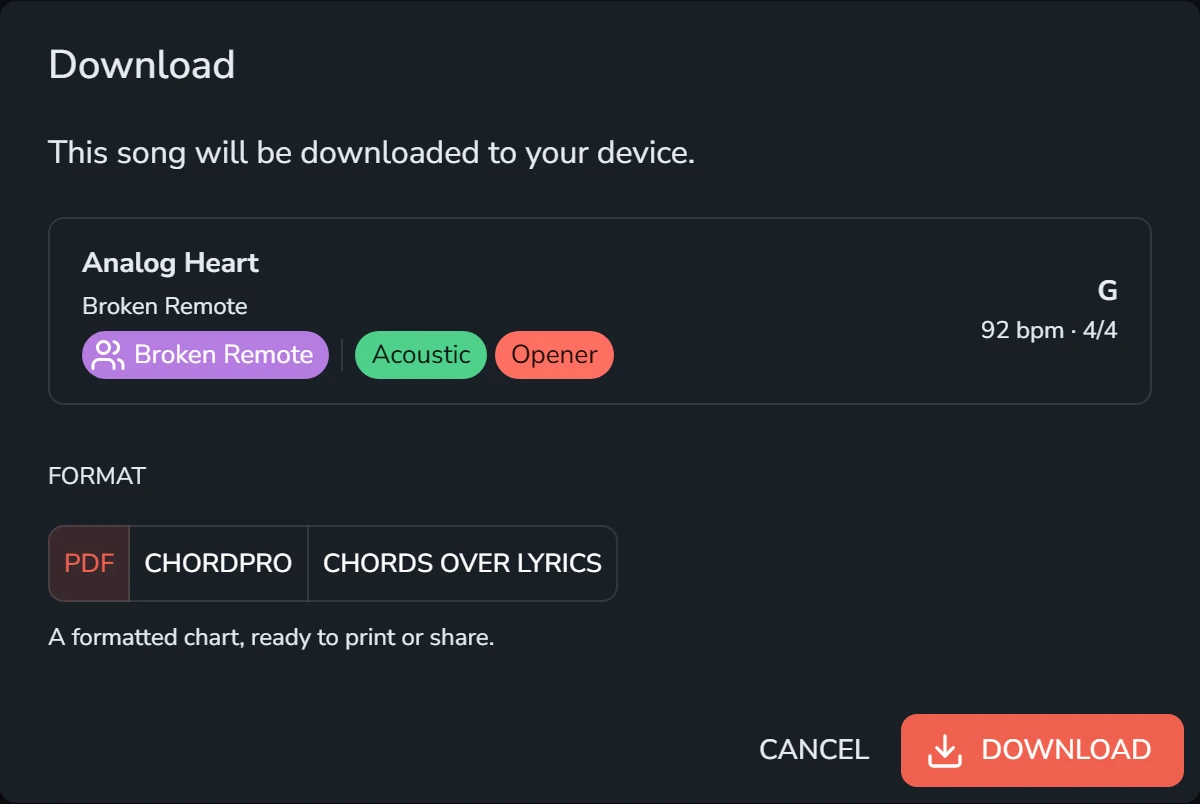
| Format | What you get |
| ------------------ | ------------------------------------------------------------------------------------ |
| PDF | A formatted chart, ready to print or share. For a file chart, the pages of the file. |
| ChordPro | Plain text with the chords inline in the lyrics. |
| Chords Over Lyrics | Plain text with the chords on their own line above the lyrics. |
The download matches what you see on screen: the key you play the song in, your capo or transpose, and your chord notation, such as Nashville numbers. A text download starts with the song's details as ChordPro directives.
Songstead remembers the format you chose last.
## Download a set
Open the set, select the menu button (the three dots) at the top right, and choose **Download**. Songstead saves every song in the set as a single PDF, one song per page, in the set's order, each in the key and chart chosen for the set. This is the easiest way to print a set for a band member who doesn't use Songstead.
## How PDFs look
PDFs have their own style, separate from the app's, under **PDF Style** in [Appearance](https://songstead.com/docs/appearance.md). You can set the font size, spacing, chord position, which parts of the chart to include, and colors. **Copy from App Style** starts the PDF style from your app style.
> [!PLAN] Backstage
> PDFs on Jam carry a small Songstead footer. Backstage removes it, and adds custom colors and spacing.
## Export your library
Open **Library** from the menu, choose the **Export** tab, and select **Download**. Songstead saves every song in your library as a ZIP archive, with one ChordPro file per text chart. A song with several text charts becomes several files, each named for its chart. Each file is in the key you play the song in, with your chord notation.

The archive is a backup you keep yourself, and most chart apps can import ChordPro. Attached files and sets aren't part of the export.
---
# Appearance and themes
**Appearance** in the menu controls how Songstead looks: the theme, how large everything is, how chords are written, how charts are laid out on screen and in PDFs, and how PDF and photo charts are colored. The **General** tab has the theme and display size, and the **Chart** tab has everything about charts. Every change follows you to your other devices, except the display size.
## Themes
On the **General** tab, select a theme to switch to it. Each one shows a small preview of its colors.

| Theme | What it looks like |
| ---------- | --------------------------------------------------------------------------------------------------------------------------------------------------- |
| Auto | Light or Dark, following your device's own light or dark setting. This is the default. |
| Light | Dark text on a light background. |
| Dark | Light text on a dark background. |
| True Black | A pure black background, which suits OLED screens. |
| Clay | A warm light theme with a cream page and earthy colors. |
| Stage | A dim, warm dark theme lit in amber, for a music stand in a room with the lights down. It keeps the screen from being the brightest thing on stage. |
## Display size
**Display Size**, on the **General** tab, makes everything in Songstead larger, up to 150%. It's handy when the buttons are hard to hit on a small screen, or when the device is further away than usual. Each device keeps its own display size, so you can set your phone without changing your computer. Charts can also get larger on their own with **Font Size**.
## Chart settings
The **Chart** tab has four tabs of its own: **Notation**, **App Style**, **PDF Style** and **Files**. A **Preview** shows your changes on a sample chart as you make them.
### Notation
How chords are spelled, in the app and in PDFs. See [Chord display](https://songstead.com/docs/chord-display.md).
| Setting | What it does |
| ----------- | -------------------------------------------------------------- |
| Chord Names | **Standard** letter names or **Nashville** numbers. |
| Quality | **Letters** like Cmaj7 and Cm, or **Symbols** like CΔ7 and C−. |
| Superscript | Shows extensions and alterations as smaller raised text. |
| Simplify | Shows only each chord's root and quality. |
### App Style and PDF Style
**App Style** is how charts look on screen, and **PDF Style** is how they look when [downloaded as a PDF](https://songstead.com/docs/export.md). The two tabs have the same settings, so a chart can be large and colorful on screen and plain black on paper.
| Setting | What it does |
| ----------------------------- | --------------------------------------------------------------------------- |
| Font Size | How large the text is. |
| Display | Which parts of a chart are drawn: chords, lyrics and comments. |
| Spacing | How far apart lines are: **Compact**, **Normal** or **Relaxed**. |
| Collapse Whitespace | Turns runs of blank lines into one. |
| Chord Position | Chords **Above** the lyrics or **Inline** with them. |
| Wrap Chords | Puts square brackets around chords, which reads best inline. |
| Chord, Lyric, Comment, Header | The text color, and for some the background color, of each part of a chart. |
The menu button (the three dots) at the top right of the **Chart** card has more options. **Copy from PDF Style** and **Copy from App Style** copy every setting from the other tab, as a starting point. **Revert Changes** undoes what you've changed since opening the page, and **Reset to Defaults** puts the tab back the way it started.
> [!PLAN] Backstage
> Colors and spacing need Backstage. Font size, display, chord position and notation are on every plan.
### Files
How [PDF and photo charts](https://songstead.com/docs/files.md) are colored on screen. **Match Theme** is the default.
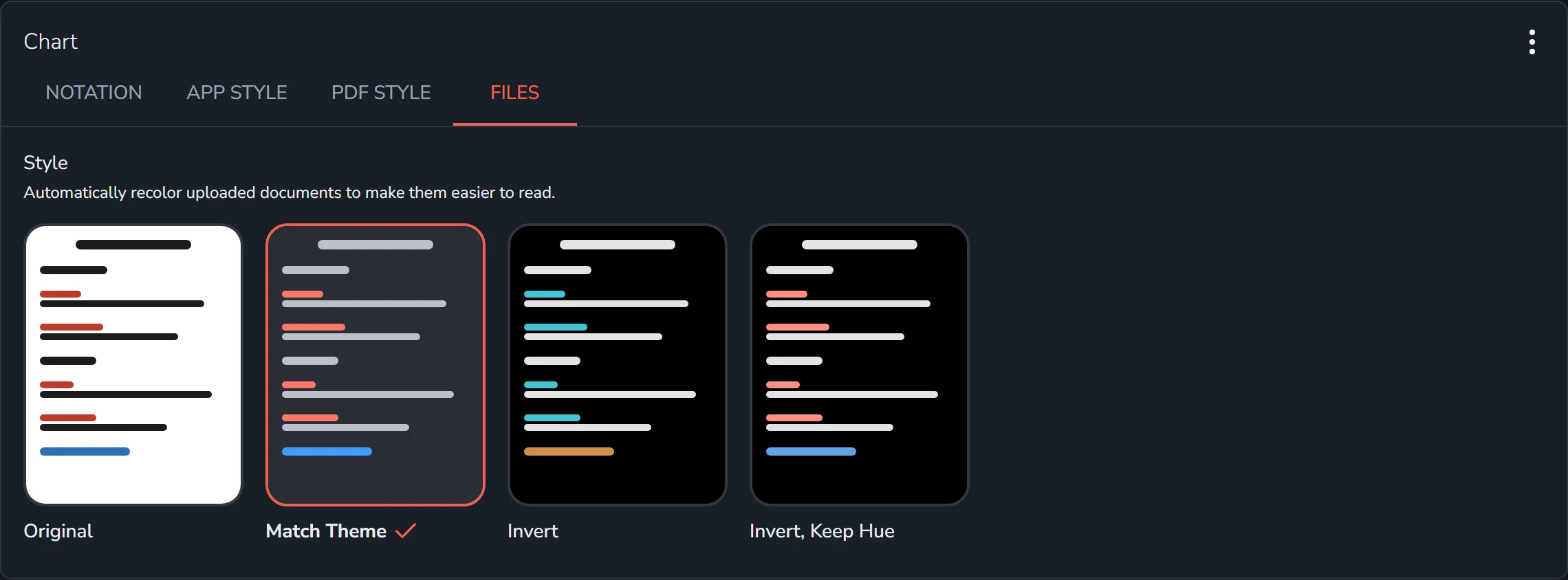
| Style | What it does |
| ---------------- | ---------------------------------------------------- |
| Original | Shows the pages as they are. |
| Match Theme | Recolors the pages to the theme's colors. |
| Invert | Inverts the pages, turning white paper black. |
| Invert, Keep Hue | Inverts the pages but keeps colors like red ink red. |
---
# Settings
**Settings** holds the choices that change how songs and Live Mode behave. Each tab has **Reset to Defaults** in the menu (the three dots) at the top right, and every setting follows you to your other devices.
## Song
| Setting | Choices | What it does |
| ----------------- | ------------------------------------ | --------------------------------------------------------------------------------------------------------------------------------------------------------------------------------------------------------------------------------------- |
| Transpose Mode | **Capo** (default), **Unrestricted** | **Capo** transposes up only, as a capo fret, for guitar and other fretted instruments. **Unrestricted** transposes up or down by half steps, for instruments like keyboards. See [Keys, capo and transposing](https://songstead.com/docs/keys-and-transposing.md). |
| Keep Screen Awake | On (default), off | Keeps your screen on while you're viewing a song or in Live Mode. Turned off, your device sleeps as it normally would. |
## Live
| Setting | Choices | What it does |
| ---------------- | -------------------------------------- | ------------------------------------------------------------------------------------------------------------------------------------------------------------------------------------------------------------------------------------------------------ |
| Scroll Direction | **Horizontal** (default), **Vertical** | **Horizontal** lays charts out in columns and moves left to right, one column at a time. **Vertical** scrolls charts in one continuous flow from top to bottom, and is the layout that has [autoscroll](https://songstead.com/docs/autoscroll.md). See [Live Mode](https://songstead.com/docs/live-mode.md). |
## Other settings
Most of how charts look is in [Appearance](https://songstead.com/docs/appearance.md). A few settings are kept where you use them rather than here:
- Chord names, simplified chords, font size and which parts of a chart are shown, from the **Display** card on a song page.
- The autoscroll speed, from the **Display** card.
- How songs are sorted, from **Songs**.
- The format you last downloaded in.
- Your annotation stamps, from **Customize stamps** in the annotation tools.
- Which tags are hidden, from the **Tags** tab in **Library**.
---
# Account
**Account** holds your sign-in details and the apps connected to your library. Its **Achievements** tab lists the [achievements](https://songstead.com/docs/achievements.md) you've earned.
## General
| Field | What it's for |
| ------------------------ | ------------------------------------------------------------------------------------------------------------- |
| Name | How you appear to other members of your [groups](https://songstead.com/docs/groups.md). |
| Username | The email address you sign in with. It can't be changed here. |
| Receive periodic updates | Whether Songstead emails you about what's new. You can also unsubscribe from the link in any of those emails. |
## Password
You can change your password with your **Current Password** and a **New Password**, then **Change Password**.
If you've forgotten your password, select the link for it on the sign-in screen. Songstead emails you a 6-digit code to reset it, which works only in the browser you asked from.
## Connected Apps
**Connected Apps** lists the AI assistants you've connected to your library, with whether each can only read or can also edit, and when it was last used. **Disconnect** removes one's access straight away. See [Connect an AI assistant](https://songstead.com/docs/ai-agents.md).
## Your plan
Your plan is managed from **Plan**, at the bottom of the app's menu. See [Plans and limits](https://songstead.com/docs/plans.md).
## Delete your account
**Delete Account** permanently deletes your account, along with your songs and sets and every group you own. You'll be asked for your password and to type DELETE to confirm. A paid plan needs to be canceled before the account can be deleted.
Songs and sets you added to other people's groups stay in those groups.
---
# Achievements
Achievements mark what you've done in Songstead, from creating your first song to finishing a set in Live Mode. They're a fun way to find features you haven't tried yet!
## Earning achievements
You earn an achievement the first time you do what it describes, and a banner pops up at the top of the screen to celebrate. You can turn the banners off with **Show achievement earned banners** on the **Achievements** tab.
## Your achievements
The **Achievements** tab in **Account** lists every achievement, grouped by plan, with how many you've earned. Select one to see the steps to earn it, with a short clip of doing them. A few are hidden until you earn them.

> [!PLAN] Backstage
> Backstage and Harmony achievements use features from those plans, and you can only earn them while you're on one.
---
# Billing and payments
Everything about paying for Songstead is on the **Plan** page. To get there, select your plan's name at the bottom of the menu. This page covers choosing a plan, changing it, cancelling, and managing your cards and receipts. For what each plan includes, see [Plans and limits](https://songstead.com/docs/plans.md).
> [!NOTE]
> Plans are bought and changed on the web at [app.songstead.com](https://app.songstead.com). The iPhone, iPad and Android apps show your plan but can't change it. A plan bought on the web works in the apps too.
## Choose a plan
The Plan page shows **My Plan**, the plan you're on now, and the plans you can choose from. Select **Start Trial**, **Subscribe** or **Upgrade** under the plan you want.
Your first paid plan starts with a free 14-day trial. Each account gets one trial. You'll be asked for a card before the trial starts, and you aren't charged until it ends. If the trial ends without a card on file, the plan ends and you go back to Jam.
## Change your plan
**Modify Plan Details** opens the plan's options:
| Option | What it changes |
| ----------------- | ----------------------------------------------------------------------------- |
| Billing Period | **Monthly**, or **Annual**, which costs less over a year. |
| Seats | For Harmony, how many people your groups can hold, including you. At least 2. |
| Include Backstage | For Harmony, whether everyone in your groups gets Backstage features. |
Before you confirm, Songstead shows exactly what the change will cost or credit you.
Your prices don't go up while you stay subscribed. Changing seats, the Backstage option, or how often you pay keeps the prices you subscribed at, even after Songstead's prices change. Switching between Backstage and Harmony, or subscribing again after your plan ends, is at the prices of the day.
When a change takes effect depends on its direction:
- **An upgrade happens right away.** That includes a better plan, more seats, or switching from monthly to annual. You're charged the difference for the rest of the billing period that day. If the change costs less, as when you add seats but drop the Backstage option, the difference is credited to your next payment.
- **A downgrade waits for the end of your billing period.** That includes a cheaper plan, fewer seats, or switching from annual to monthly. You keep what you have until then, and the Plan page shows what's coming and when.
If you change your mind about a downgrade, select **Stay on** and your plan's name, such as **Stay on Backstage**, from the menu on **My Plan**.
## Cancel
Select **Cancel Subscription** from the menu on **My Plan**. Your plan keeps working until the end of the period you've paid for, then you move to Jam. Your songs, sets and charts stay in your library. To undo a cancellation before the period ends, select **Stay on** and your plan's name from the same menu.
If you own Harmony groups, cancelling switches them off for your members when the plan ends. See [Groups and roles](https://songstead.com/docs/groups.md).
## Payment methods
**Payment Methods** lists the cards on your account. Select **Add Payment Method** to add one. The card marked **Default** is the one charged. Select **Make Default** on another card to use it instead, or **Delete** to remove one.
## Billing history
**Billing History** lists every charge. Select **View** on one to open its receipt.
## A failed payment
If a payment doesn't go through, the Plan page says so. Your plan keeps working while the card is retried over the following days. Update your card under **Payment Methods** to fix it. If the payment never goes through, the plan ends and you move to Jam.
## Complimentary plans
Some accounts are given a plan for free. The Plan page says so, and there's nothing to pay or manage.
## Plans from a group
If you're in a group whose owner pays for Harmony with the Backstage option, you get Backstage features from that group without a plan of your own. The Plan and Groups pages say when a group is giving you a better plan than your own.
## Questions about a charge
Email [contact@songstead.app](mailto:contact@songstead.app) about your plan, a charge, or anything else to do with billing.
---
# Connect an AI assistant
You can connect Claude or ChatGPT to your Songstead library. A connected assistant can find songs, fill in song details, tag songs, build sets and set up your [MIDI](https://songstead.com/docs/midi.md) remotes and triggers, working in your library the way you would.
> [!PLAN] Backstage
> Connecting an AI assistant needs Backstage or Harmony.
## Connect ChatGPT
Songstead is in ChatGPT's plugin library.
1. In ChatGPT, select **Plugins** in the menu on the left, and search for **Songstead**.
2. Select **Songstead**, then **Install plugin**.
3. ChatGPT sends you to Songstead. Sign in, choose what ChatGPT can do, and select **Allow**. See [Approve the connection](https://songstead.com/docs/ai-agents.md#approve-the-connection).

## Connect Claude
Songstead is coming to Claude's connector directory. Once it's there, you'll find it by searching for **Songstead** in Claude's connectors. Until then, add it as a custom connector, as described in the next section.
## Connect another assistant
If your assistant doesn't list Songstead, or you'd rather set it up yourself, add a custom connector with this URL:
```
https://app.songstead.com/mcp
```
This works in Claude and in any other assistant that supports custom connectors.
## Approve the connection
However you connect, the assistant sends you to Songstead to sign in and approve the connection. You choose what it can do:
| Access | What the assistant can do |
| ------------- | ----------------------------------------------------------------------------------------- |
| Read only | See your songs, charts, sets, tags, groups, files and MIDI setup. |
| Read and edit | All of that, and create and change songs, charts, sets, tags, files and your MIDI setup. |
Select **Allow** to connect.
## What an assistant can't do
A connected assistant can't delete songs, sets, charts, tags or files. It can take a tag off a song, a song out of a set, and a trigger or control out of your MIDI setup, but nothing more destructive. It also has no access to your plan, billing, account settings, annotations, or your groups' members and invites.
Everything an assistant changes goes through the same permissions you have. It can't edit a song in a group where you're a viewer.
## Things to ask
- "Tag every song over 120 bpm as upbeat."
- "Make a 45-minute set from my songs tagged acoustic."
- "Which songs in my library are in the key of D?"
- "Fill in the tempo and time signature for the songs that are missing them."
- "Make me a MIDI remote for my Helix, with a button for each snapshot and a fader for the expression pedal."
- "Switch my keyboard to patch 12 whenever Wonderwall starts in Live Mode."
> [!NOTE]
> Most assistants won't write out a song's lyrics, because they're copyrighted, so an assistant isn't a good way to add new songs. Add those yourself, by typing, pasting or [importing](https://songstead.com/docs/import.md) them. Assistants work fine with the songs already in your library.
## Manage connections
**Connected Apps** in **Account** lists every connection, whether it can edit, and when it was last used. **Disconnect** ends a connection straight away. See [Account](https://songstead.com/docs/account.md).
## Ask an assistant about Songstead
These docs are published for assistants too. Point any AI assistant at [songstead.com/llms-full.txt](https://songstead.com/llms-full.txt) and it can answer questions about how Songstead works, whether or not it's connected to your library. Each page is also available as Markdown by adding `.md` to its address.
---
# Get help
If something isn't working, or you're not sure how to do something, there are a few ways to get an answer.
## Look it up
- **These docs** describe everything Songstead does. The menu on the left lists every page.
- **[Tutorials](https://songstead.com/docs/tutorial.md)** has step-by-step guides with short videos for the things people ask about most, like creating a song, importing a library, autoscroll and annotations.
## Ask an AI assistant
Every page of these docs is also published for AI assistants. If you use Claude, ChatGPT or another assistant, give it this address and ask your question:
```
https://songstead.com/llms-full.txt
```
The assistant reads the docs and answers from them. See [Connect an AI assistant](https://songstead.com/docs/ai-agents.md) if you'd like it to work in your library as well.
## Email us
Email [contact@songstead.app](mailto:contact@songstead.app) about anything: a question about your account, your plan or your group, something that's broken, an idea, or an import that didn't go right. Replies usually come back within a day or two.
To help us help you quickly:
- **For something broken,** say what you were doing, what happened instead, and which device and browser or app you were using. A screenshot helps a lot.
- **For an import that went wrong,** attach the file you were importing, and we'll look at it directly.
## Ask the community
The [Songstead community on Facebook](https://www.facebook.com/groups/songstead) is a group of musicians who use Songstead. It's a good place to ask how other people set things up, share tips, and hear about what's new.
## Suggest a feature
Songstead is built around the people who use it. If something would make your rehearsal or your gig easier, email us or post in the community, even if it seems small.
---
# Free tools
Songstead has four free tools on its website. You don't need an account to use them, and each one runs in your web browser.
## Chord Sheet Maker
[Chord Sheet Maker](https://songstead.com/tools/chord-sheet-maker) turns a chart into a clean, printable PDF. Paste in chords and lyrics, in ChordPro or chords over lyrics, add a title and artist, and download the PDF.
It's handy for printing one chart quickly. To keep your charts, change keys and play from them, put them in a Songstead library instead. See [Songs](https://songstead.com/docs/songs.md).
## Song Transposer
[Song Transposer](https://songstead.com/tools/song-transposer) changes the key of a recording. Choose an audio file, move it up or down by half steps, and download the result as an MP3. The speed stays the same.
Your recording is never uploaded. Everything happens on your own device.
This is for audio. To change the key of a chart, see [Keys, capo and transposing](https://songstead.com/docs/keys-and-transposing.md).
## OnSong Backup Fixer
[OnSong Backup Fixer](https://songstead.com/tools/onsong-backup-fixer) repairs OnSong backups that SongbookPro won't import, the ones that fail with "Import Failed — Some files failed to import" and "Error code 0" or "Error code 1". Choose the backup, and download a repaired copy.
Like the transposer, it runs on your own device, and nothing is uploaded.
You don't need it to move from OnSong to Songstead. Songstead imports OnSong backups directly. See [Importing](https://songstead.com/docs/import.md).
## MIDI Tester & Monitor
[MIDI Tester & Monitor](https://songstead.com/tools/midi-tester) shows every MIDI message your keyboard, controller or footswitch sends. You can filter them by device, message type and channel, see which notes are held and where each controller stands, and send notes, CCs, program changes and SysEx back to your gear, including from an on-screen keyboard.
It works in Chrome, Edge, Firefox and Opera. Safari can't reach MIDI devices.
To have your gear do something on stage, like turning pages from a footswitch or sending patch changes as each song starts, see [MIDI](https://songstead.com/docs/midi.md).